

Two requests from the same email updated one contact and preserved both submissions. In a shared-browser test, the new-email contact creation setting, which was initially off in this form, allowed another fictional person to overwrite that contact’s identity.
For a cleaning service, those are two different problems. A returning customer may legitimately revise a request. A receptionist entering inquiries for different people needs those identities kept separate. This HubSpot Free forms test checks both situations, plus required fields and actual email notifications.
Quick Verdict
✅ Repeat requests were retained: two submissions using the same email produced one contact, an updated Message property, and two separately stored requests.
⚠️ The identity setting started off in this form: With new-email contact creation off, a different fictional email from the same browser changed the original contact’s identity. With it on, the preceding different-email submission created a separate contact.
📧 Notifications arrived: all four valid submissions generated received inbox messages. HubSpot labeled the second request a reconversion: another submission associated with an existing contact, not proof that the same person returned.
🏆 Recommendation: HubSpot Free is a viable starting point for service inquiries if you enable new-email contact creation, review individual submissions for repeat requests, and verify notification receipt. Avoid shared-device intake until you have checked contact association with fictional identities. Service-Intake Setup Checklist →.
How I Tested HubSpot Free Forms
I used a fictional U.S. cleaning service, with standard cleaning, move-out cleaning and deep-cleaning inquiries. The tests were browser-assisted: the form was configured and submitted through the HubSpot interface, CRM properties were independently read through the connected integration, and notification messages were read in the connected inbox. No real customer, sales campaign, payment or service appointment was involved.
The account’s subscription page showed Free, including Free Marketing Tools. It did not display an active trial on that page. Although the integration reported incomplete onboarding and the home page showed unfinished setup guides, I could create, publish and submit the standalone form without completing them.

The existing Prompt Atlas newsletter form, captured Hostinger Reach subscription form and captured WordPress comment form were preserved. I created a fourth, independent form named Prompt Atlas 49 – Service Lead Test. It was published only as a standalone test form; it was not embedded into a live Prompt Atlas page.
The acceptance checks were defined before submission: invalid required input should not create an ordinary valid submission; repeated email A should retain one contact and two request records; a different fictional identity should remain separate; and an alert counted as delivered only after it appeared in the inbox.
Service-Intake Setup Checklist
- Open Forms → Create form → Form Editor → Next → Start from blank → Use template. This is the current editor, not the Legacy Form Editor.
- Rename the form. Keep the default contact properties First Name (
firstname), Last Name (lastname) and Email (email). Under Add → Properties, search for Message and Postal Code and add their Contact versions (messageandzip). Postal Code also appeared as a company property; that was not the field used here. - Make First Name, Email and Message required. Leave Last Name and Postal Code optional. Put the requested cleaning service in Message; no custom CRM property is needed for this experiment.
- Use the confirmation: PA49 test submission received — no actual service will be scheduled.
- Under Settings → General, turn on Automatically create new contacts from unknown email addresses for the main tests. Turning it on automatically turned off and disabled returning-visitor pre-population, which fills fields with previously known visitor information. The lifecycle-stage setting remained Lead.
- Under Settings → Submission settings, use Add users to notify with the account’s active user. The creator was already selected when the panel finished loading. Leave Notify contact owner off for this test. Separately check the user’s Form submission → Allow notifications → Email preferences; both were already on.
- Select Review and update → Update, then use the standalone share link. No follow-up workflow was created: the form showed Workflows (0).
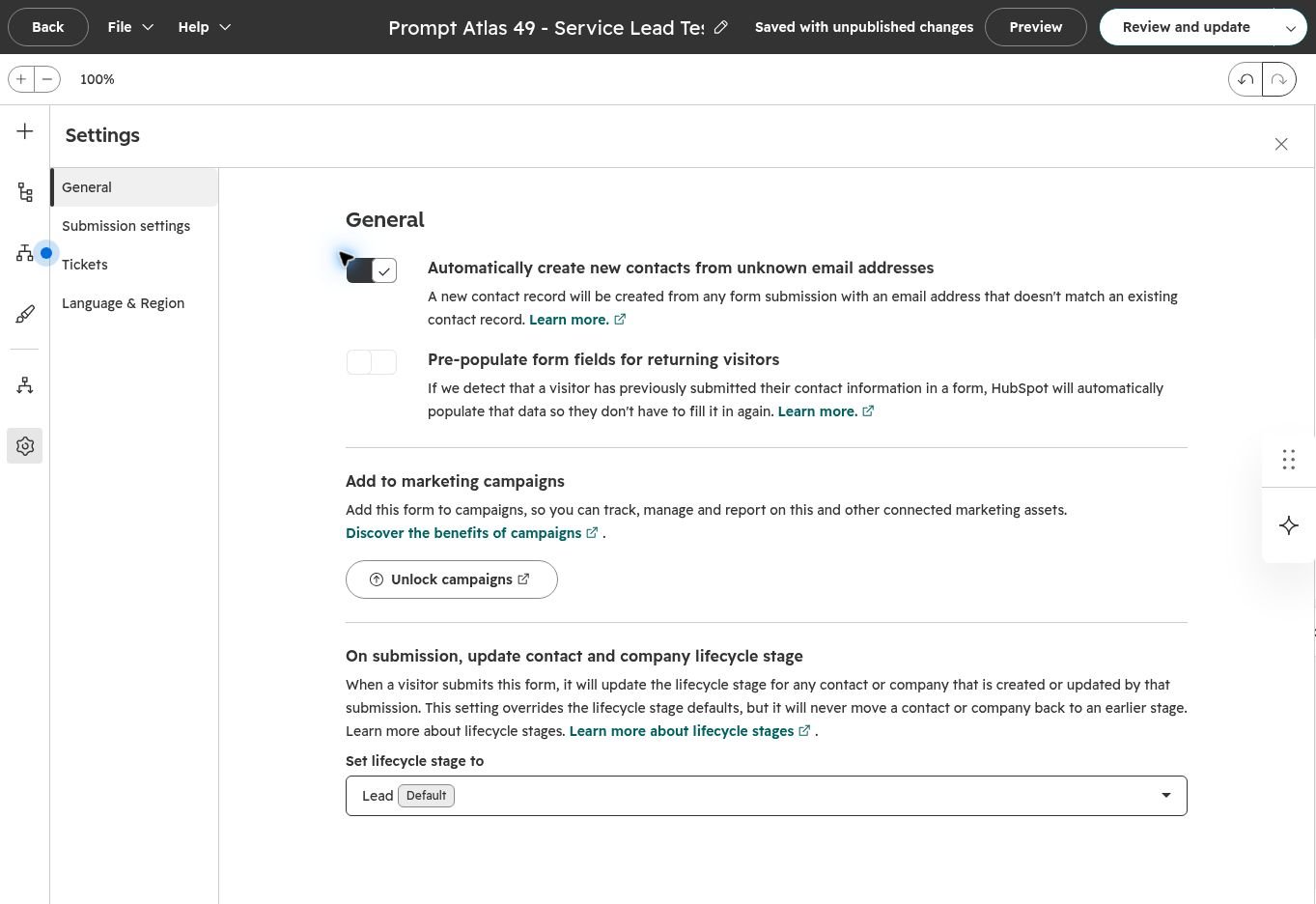
The editor showed a campaign upgrade gate. It also warned that this test form had no reCAPTCHA or data-privacy field. Those were recorded as limitations of the isolated experiment, not resolved by sending real customer data. I did not find a Set new contacts as marketing contacts control in the tested General panel, so marketing-contact classification was not verified.
The tradeoff is how HubSpot treats an unknown email from a browser it recognizes: enabling the option favors a separate contact for that email; leaving it off allows association with an existing browser-linked contact. This helps explain the choice, but the option is not a substitute for spam protection or consent controls.
For current interface instructions, see HubSpot’s form editor documentation. The settings available can depend on the subscription.
Results at a Glance
Swipe horizontally to view all columns on a narrow screen.
| Check | Observed result | Coverage |
|---|---|---|
| Empty required fields | First Name, Email and Message showed required-field errors; the form stayed on screen. | Completed |
| Malformed email | With other fields filled, not-an-email was rejected with an email-format error. | Completed |
| A1: first inquiry; option on | One Alex contact; standard-cleaning Message and ZIP 33130 matched. | Completed |
| A2: same email; option on | Same contact ID; Message changed to move-out cleaning; both request records remained. | Completed |
| B1: different email; option on | Casey received a different contact ID, ZIP 78704 and the deep-cleaning request. | Completed in the same browser |
| C1: different email; option off | Taylor overwrote the name, primary email, Message and ZIP on Alex’s existing contact record. | Controlled association problem reproduced |
| Internal notifications | Four received messages for four valid submissions; A2 and C1 were reconversions. | Completed for this run |
| Private session and exact mobile sizes | No isolated-session control; only built-in mobile preview inspected. | Partial; 320px/390px not verified |
Required Fields Blocked Empty and Malformed Input
Clicking Submit with the form empty produced an error beside each required field and a form-level instruction to complete all required fields. Next, I entered Alex’s name, ZIP and request but used not-an-email. HubSpot displayed an email-format error instead of the confirmation.
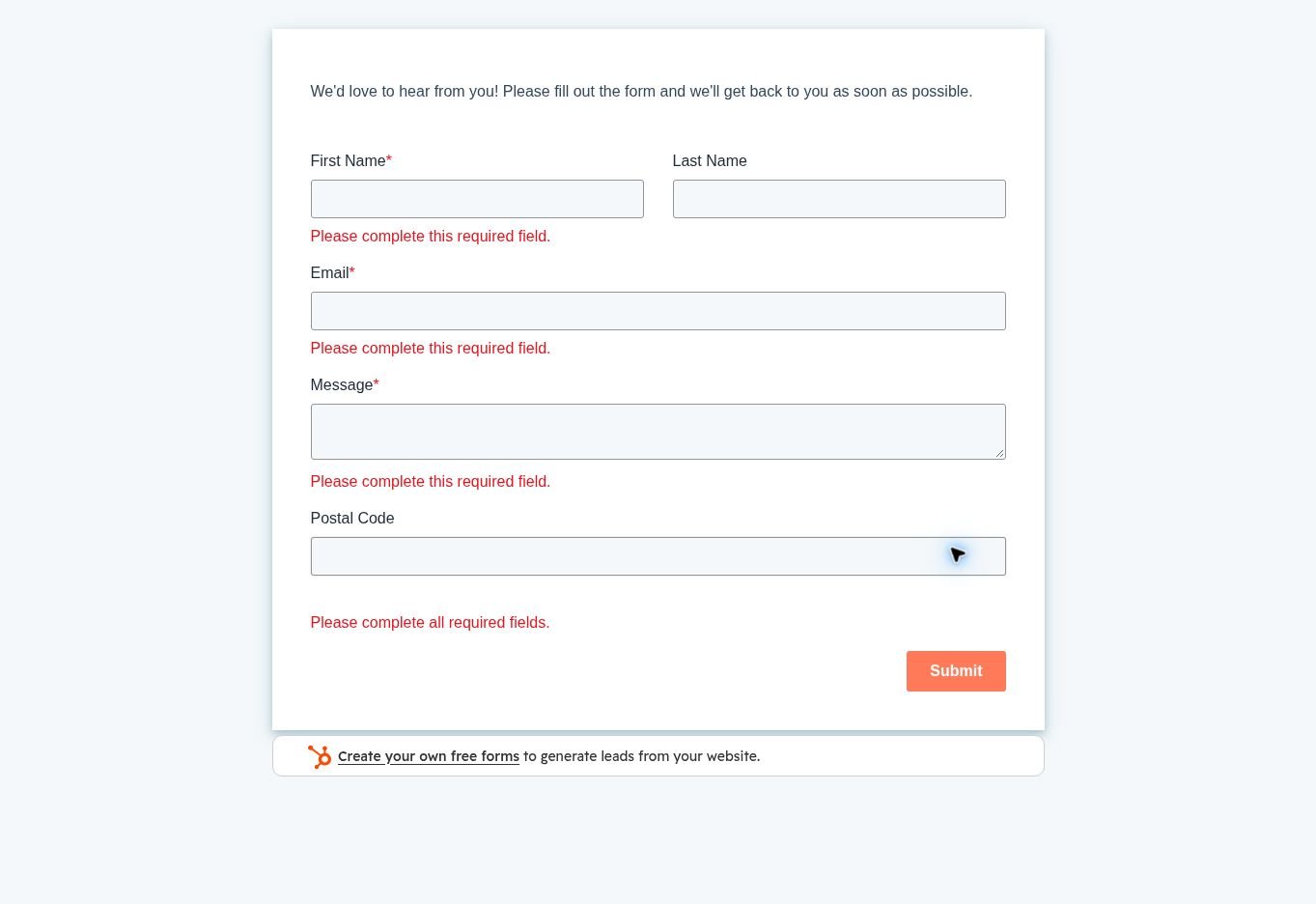

After the four valid tests, the submission table contained four records; these two invalid attempts did not appear as ordinary valid submissions. This checks basic front-end validation, not spam resistance, address ownership or whether every syntactically valid address exists.
The Same Email Updated One Contact and Kept Both Requests
For A1, Alex Morgan PA49 TEST requested Standard cleaning, two-bedroom condo, using controlled alias A and ZIP 33130. The CRM contained one matching contact, the expected values and a conversion-event count of one.
I reloaded the same standalone page and submitted A2 with the same name, email and ZIP, changing the Message to Move-out cleaning instead; revised request. The exact-email lookup still returned one contact with the same ID. Its Message now contained A2 and the conversion-event count was two.
The original request was still visible in the form’s Submissions table. I used Manage columns → Message – Contact → Save to show both messages together. That made the distinction easy to check: the contact property held the latest request, while the two submission rows retained their separate A1 and A2 messages.

For a service business, the practical step is to read the relevant submission before preparing a quote. A single current Message property does not show the whole request sequence. This result agrees with HubSpot’s explanation of repeated submissions.
A Different Email Was Separate With the Setting On
B1 used Casey Brooks PA49 TEST, controlled alias B, ZIP 78704 and a deep-cleaning request for a three-bedroom home. It was submitted in the same Chrome session with contact creation for unknown emails still on.
The CRM then contained two PA49 test contacts. Casey had a different ID from Alex, the expected fields and one conversion event. Alex still held A2 and two conversion events at this checkpoint. No incorrect combination was observed in this enabled-setting case.
Turning the Setting Off Changed an Existing Identity
After preserving the successful results, I turned off Automatically create new contacts from unknown email addresses on the dedicated test form and applied the update. Pre-population remained off. I reloaded the same form page and entered Taylor Reed PA49 TEST, controlled alias C and ZIP 10001.
C1 displayed the usual confirmation. The CRM check revealed the problem: Taylor now occupied the same record ID originally created for Alex. The primary email changed from alias A to alias C, along with the name, Message and ZIP. Its conversion-event count became three. Casey’s separate record was unchanged.
The form’s table still contained four submissions, but the linked contact label on Alex’s two earlier rows now read Taylor. Their original A1 and A2 messages remained in the Message column. That is a particularly easy detail to miss if you check only the success message or current contact name.
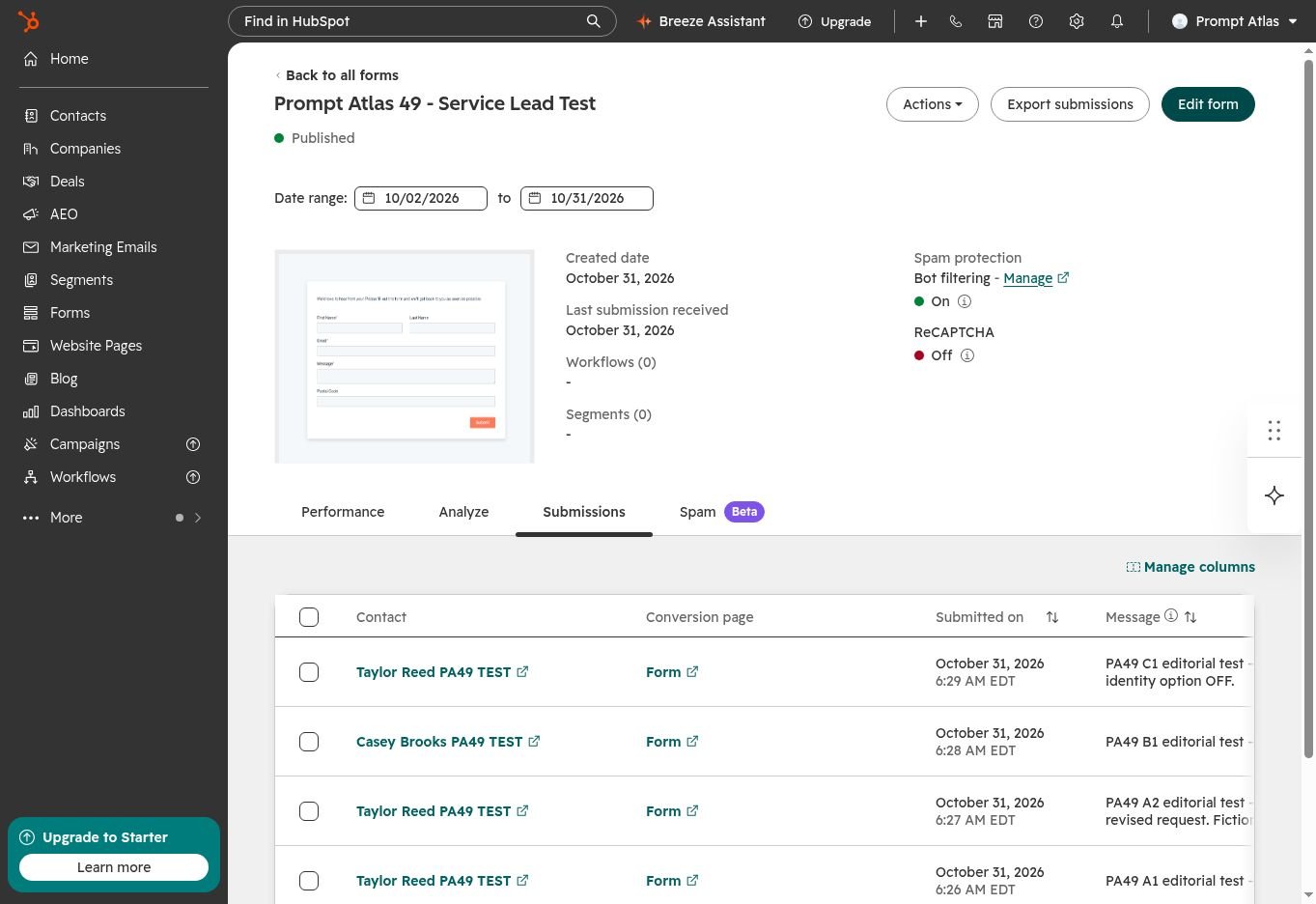
This is consistent with the documented cookie-based association behavior when the option is off. Cookie values were not inspected, and no cookie-cleared comparison was run, so this is an observed same-browser association result rather than a complete cookie-mechanism experiment. It is not evidence of an undocumented HubSpot defect.
I stopped the identity experiment after this change and restored the form’s new-email contact-creation option to on. The fictional records and submission history were retained as test evidence; the test names include PA49 TEST. No production contact was used.
Notifications Arrived, Including the Repeat Submission
The form named the active account user as a real-time notification recipient. User-level Form submission notifications and their Email channel were on. The contacts did not need an owner for this selected-user route.
All four valid submissions produced messages from noreply@notifications.hubspot.com in the connected inbox. The A1 and A2 bodies were read and matched the original and revised requests; B1 and C1 bodies were checked too. The timestamps below are the received-message timestamps, converted to UTC; they are not measured end-to-end delivery guarantees.
- A1: 10:26:44 UTC — new-submission notification.
- A2: 10:27:18 UTC — reconversion notification with the revised move-out request.
- B1: 10:28:12 UTC — new-submission notification for Casey.
- C1: 10:29:29 UTC — reconversion notification for Taylor.
C1 illustrates why a reconversion label is not identity proof. In that case, a different fictional email had updated an existing record. Staff should check the submitted fields and the form’s identity settings rather than assuming every reconversion means the same person returned.
HubSpot’s notification instructions distinguish the selected-user route from notifying a contact owner. This run verifies receipt in one inbox during one session, not long-term delivery rates.
Pricing and Available Features
Pricing last checked: October 31, 2026. The U.S. Marketing Hub pricing page advertised Free at $0 per month for up to two users, with no credit card required. The account itself showed a Free subscription. No paid upgrade or trial was activated for these tests.
On this account I could create the standalone form, use existing contact properties, configure its identity option, view submissions and receive internal alerts. HubSpot branding remained on the form. The campaign association control showed an upgrade link. Adding form steps is documented as requiring Starter or above; that was not tested here. The confirmation screen is not an extra data-entry step.
I did not test paid automation, maximum form counts, marketing-contact limits, removal of branding or upgrade pricing. The form’s internal alerts should not be confused with an automated customer follow-up campaign.
What I Learned From Testing
The useful result was the difference between three places that can all look like “the lead”: the current contact card, the individual request record and the notification email. A2 legitimately changed the current request, while C1 changed the identity attached to an earlier record. The submission messages helped distinguish them.
Before using this for service intake, follow the Service-Intake Setup Checklist, submit two different fictional identities and a repeat request, then check the contact IDs, individual submissions and notification inbox. Keep the request history visible before preparing a quote.
This article addresses CRM identity and repeat requests. The earlier small-business tools guide includes a newsletter signup check, while HubSpot vs Apollo vs Clay covers different sales tasks. Neither substitutes for the repeat-submission checks here.
Test Limits
- One Free account, one current-editor form, one Chrome session, four valid submissions and two invalid attempts.
- Three controlled aliases delivered to the same owner’s inbox; these were synthetic identities, not independent real customers.
- No private-session control or direct cookie inspection. The option-on and option-off cases used different new aliases in a sequence, not a randomized experiment. The initial off state was observed on this form; it does not establish a universal default.
- No customer consent collection, spam challenge, campaign, quote calculation, lead assignment workflow or marketing-contact classification test.
- The standalone test form was left with new-email contact creation on. The altered fictional contact was retained to preserve the observed result.
- The built-in Mobile preview showed fields and Submit at approximately 442 CSS pixels, but stated that submissions would not process. Exact 320px/390px submissions, touch, keyboard behavior, and narrow-screen errors were not verified.
- No production embed or long-term reliability test was completed.

Frequently Asked Questions
What happens when the same email submits a HubSpot form twice?
In this Free-account test, it retained one contact with the same ID, updated Message to the newer request and stored both submissions separately. This was observed with new-email contact creation on.
Can a different person overwrite a contact from a shared browser?
Yes, in this test: with new-email contact creation off, Taylor’s fictional email changed the record originally created for Alex. That option had been off when this form was created. With it on, Casey had received a separate contact in the preceding case.
Does HubSpot Free send form submission notifications?
The four valid submissions in this run generated received internal email notifications. Both the form’s selected recipient and the user’s Email notification channel were checked. This does not verify customer follow-up automation.
Do I need to finish every onboarding task before creating a form?
This account had incomplete setup guides, but the standalone form could still be created, published and submitted. That observation applies to this account; it does not prove every setup task is optional for every feature.





Leave a Reply