

Can a Google Sheets low-stock workflow avoid repeated emails and recognize a new alert after restocking? This Make workflow did both during normal runs.
The strongest finding came from an induced failure: Gmail delivered the alert, the state write failed, and the next unchanged run delivered a duplicate. The results below distinguish normal operation from that failure and its recovery.
Quick Verdict
✅ Useful for a small, manually maintained inventory sheet: the tested workflow sent alerts at or below a threshold, suppressed repeats in the next run, and reset after a detected restock.
⚠️ Choose the checking frequency carefully: a check every 15 minutes around the clock would require an estimated 2,880 reads in 30 days, exceeding Make Free’s 1,000 monthly credits before emails or state updates.
🧩 Useful evidence, within a limited scope: the original seven-product cycle, 105-product search check, and nine received test emails support the results described here. They do not establish reliable unattended operation, automatic pagination, or exactly-once delivery.
🚨 Duplicate delivery was demonstrated: a successful email followed by a failed state write left the row eligible for another alert. Restoring the write restored normal suppression, but no protective error-handling or PENDING-state mitigation was validated.
What I Tested
The fictional business was a small U.S. retailer tracking packaging and shipping supplies. The sheet contained no real customer information. Every test message went to my own controlled inbox; no supplier received a message and no purchase order was created.
The starting Make account showed Free access, 991 of 1,000 credits remaining, and zero of two active scenarios. The workflow was assembled manually without an AI model. This is rule-based automation: the spreadsheet classifies each row, and Make handles the branches, emails, and state updates.
The acceptance rules were concrete:
- Send an alert when a valid whole-number quantity is at or below its reorder point.
- After a successful send and state update, do not send the same alert again on the next unchanged read.
- When a later read sees stock above its reorder point, reset the alert state.
- Permit a new alert after stock falls again.
- Do not turn blank, text, or negative quantities into low-stock messages.
| SKU | Product | Starting stock | Reorder point | Observed result |
|---|---|---|---|---|
| PA-001 | Paper bags | 12 | 5 | No email |
| PA-002 | Shipping labels | 5 | 5 | Email received; state ALERTED |
| PA-003 | Packing tape | 3 | 5 | Email received; state ALERTED |
| PA-004 | Gift boxes | 0 | 5 | Email received; state ALERTED |
| PA-005 | Tissue paper | Blank | 5 | INVALID; no email |
| PA-006 | Mailers | unknown | 5 | INVALID; no email |
| PA-007 | Ribbon | -1 | 5 | INVALID; no email |
How the Sheet Decides What to Do
The Stock tab used seven columns: SKU, Product, OnHand, ReorderPoint, AlertState, TestCase, and Action. AlertState stores the workflow’s memory. Action is calculated from the current quantity, threshold, and stored state.
This was the formula in G2, copied down through G8 with relative references:
=IF(OR(NOT(ISNUMBER(C2)),NOT(ISNUMBER(D2))),"INVALID",IF(OR(C2<0,D2<0,MOD(C2,1)<>0,MOD(D2,1)<>0),"INVALID",IF(C2<=D2,IF(E2="ALERTED","NONE","ALERT"),IF(E2="ALERTED","RESET","NONE"))))
The test sheet used the U.S. locale. A sheet with different regional settings may require different formula separators.
| Action | Meaning | Make branch |
|---|---|---|
| ALERT | Valid stock at/below the threshold, without ALERTED state | Send email, then write ALERTED |
| RESET | Stock above the threshold, with ALERTED state | Write READY without sending email |
| NONE | No new alert or reset needed | Neither branch passes |
| INVALID | Quantity or threshold fails the formula’s numeric rules | Neither branch passes |
The numeric rule is deliberately narrow: nonnegative whole numbers. The formula contains guards for fractions and invalid thresholds, but the end-to-end test only exercised the invalid inputs listed above. Formula inspection is not a substitute for running additional cases.
This state logic matters more than the email wording. An inventory row can remain low for several checks without becoming a new alert episode. READY and ALERTED let the workflow distinguish that situation from a new decline after restocking.
The Make Workflow
The tested sequence was:
- Google Sheets — Search Rows: read existing inventory rows, including Action and the returned row number.
- Router: split the result into two routes using Action.
- ALERT route: filter for Action = ALERT, send the Gmail message, then use Google Sheets — Update a Cell to write ALERTED in column E of that returned row.
- RESET route: filter for Action = RESET and write READY in column E, without an email step.
For a reproduction, configure the search to include all relevant inventory rows and the Action column, and confirm the returned row numbers before enabling writes. The original cycle covered seven products. The follow-up search-coverage check below used 105 products; automatic pagination remains untested.
Map the SKU, product, current quantity, and threshold into the message so the recipient can identify the problem. My test subject was [Prompt Atlas 48 TEST] Low stock <SKU>. The body explicitly identified the fictional test and included the quantity and threshold.
Start with a copy of your data and your own inbox. Run the unchanged sheet a second time, then test a restock followed by a new drop. Those checks exercise the stored state; a successful first email alone does not.
The original execution screenshots retain unused assembly placeholders, which sent nothing. The downloadable blueprints have those placeholders removed. New configuration images below show the alert filter and the cell mapping.
Download the starter blueprints
Download the Make starter ZIP: base workflow, data-warning variant, and setup notes.
Unzip it and import one JSON file using Make’s More → Import blueprint. Choose the base file for two routes, or the data-warning file for four routes and add the DataIssueState column H. Both sanitized files were imported into a new scenario on October 31. That check verified reconstruction of modules and filters; it was not a second end-to-end run after reconnecting the public files. The connected source copy supplied the execution results above.
Select your own connection in every Sheets and Gmail module. Replace the spreadsheet-ID placeholder in every Sheets module, confirm the Stock tab and field mappings, and enter your own inbox in each Gmail To field. Connection IDs and recipients were removed from the public files. Keep scheduling inactive while testing. The included Limit 200 covers the 105-row fixture, not every inventory size.
Configure the search, filters, and cell mappings
Show the detailed setup and configuration screenshots
I rechecked the saved design and tested a separate connected copy on October 31, 2026. The setup below follows that design. The public blueprints were also imported into a new scenario to verify their structure; they require your own connections, spreadsheet ID, and recipient before running.
- Prepare the sheet: use
Stockas the tab name and put the seven headers in A1:G1 in the order listed above. EnterREADYin E2:E8 for a fresh test. Copy the formula into every inventory row; adding a product without its Action formula leaves it outside this classification logic. - Select Google Sheets — Search Rows: use the regular module. Make documents that Search Rows (advanced) does not return row numbers, which this design needs for its writes. Select your copied spreadsheet, the Stock tab, headers enabled, and a column range covering A:G. Read calculated values rather than formula text.
- Include both actions: do not restrict the search to ALERT alone, because RESET also needs rows. The follow-up used no search filter, headers enabled, column range A-CZ, Formatted value, and Limit 200. It returned all 105 fictional products. Set a limit that covers your own expected result set and check the returned SKUs and row numbers before connecting writes.
- Add the Router filters: on the email route, map
Actionfrom Search Rows, choose the text equality operator, and enterALERT. On the reset route, use the same source field and operator withRESET. NONE and INVALID should pass neither filter. - Configure Gmail: use your own test inbox as recipient. Map SKU into the subject and Product, OnHand, and ReorderPoint from the same Search Rows bundle into the body. Do not type a real supplier address during testing.
- Configure Update a Cell after Gmail: select the same spreadsheet and Stock tab. In
Cell, type the literalEimmediately followed by the mapped row-number token from Search Rows. If that token resolves to 4, the target must beE4. SetValueto the literalALERTED; Raw input preserves the text. Do not hard-code E2 or use a bundle counter as the row number. - Configure the reset write: use the same cell mapping, but set Value to
READY. This route has no Gmail step. Keep recurring execution off until the manual alert, repeat, restock, and new-drop checks pass.
Field reference: Make’s Google Sheets module documentation, checked October 31, 2026. The row number must come from the search result even when the returned rows are filtered or reordered.
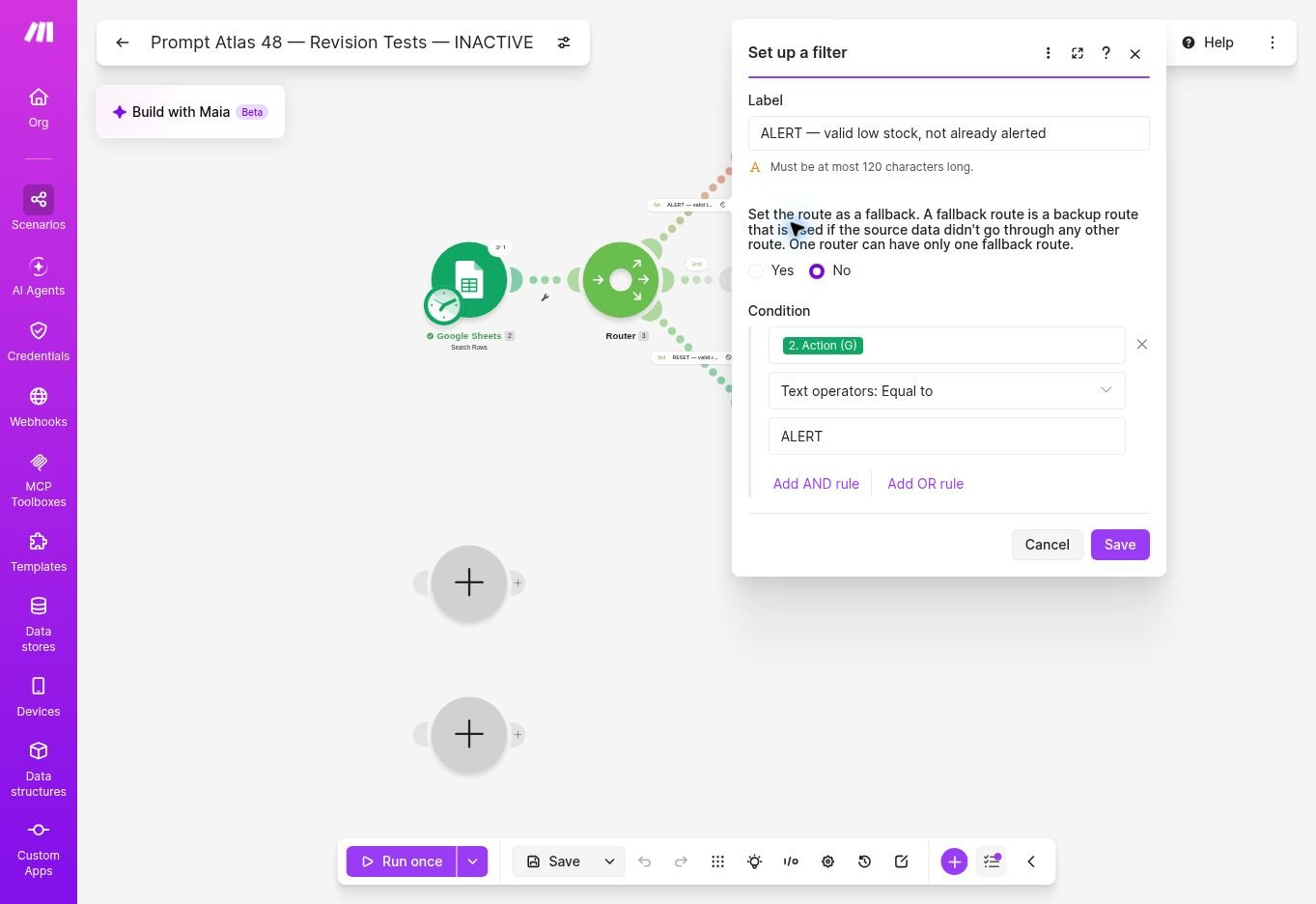
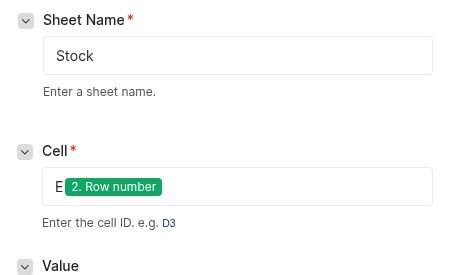
Check search coverage before increasing the catalog
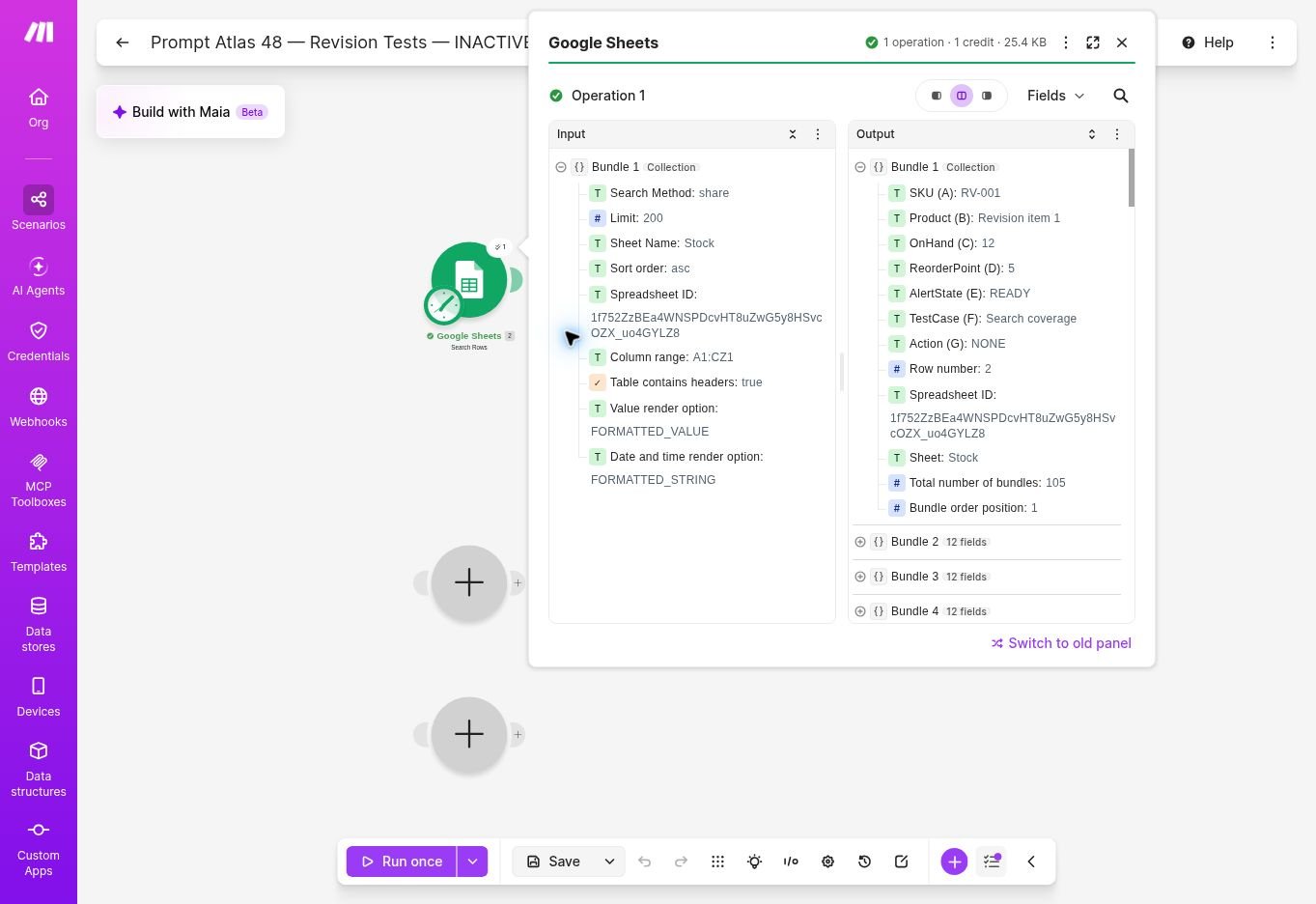
A successful email from an early row does not establish that the last product was read. Make defines Limit as the maximum results returned per execution. Raising it is not evidence of pagination or complete coverage.
In a separate test copy, add identifiable products before and after the configured limit, including one ALERT and one RESET beyond it. Run Search Rows alone and compare returned SKUs with the expected list; then repeat with a larger supported limit. Check the last row and every missing SKU before enabling downstream actions. If the catalog exceeds what a single read can cover, it needs a separately validated batching or pagination design. Repeating the same bounded search is not proof that later rows will eventually be processed.
Observed follow-up, October 31: I used a separate 105-product sheet with RV-104 set to ALERT and RV-105 set to RESET. With Limit 100, the isolated Search Rows execution returned 100 bundles. With Limit 200, it returned 105; the final bundles contained RV-104/ALERT at sheet row 105 and RV-105/RESET at row 106. Each isolated read displayed one operation and one credit. These were search-only checks, not a 105-product email-delivery or production-load test. Automatic pagination, larger catalogs, and month-long costs remain untested.
Tested extension: notify the owner about invalid data
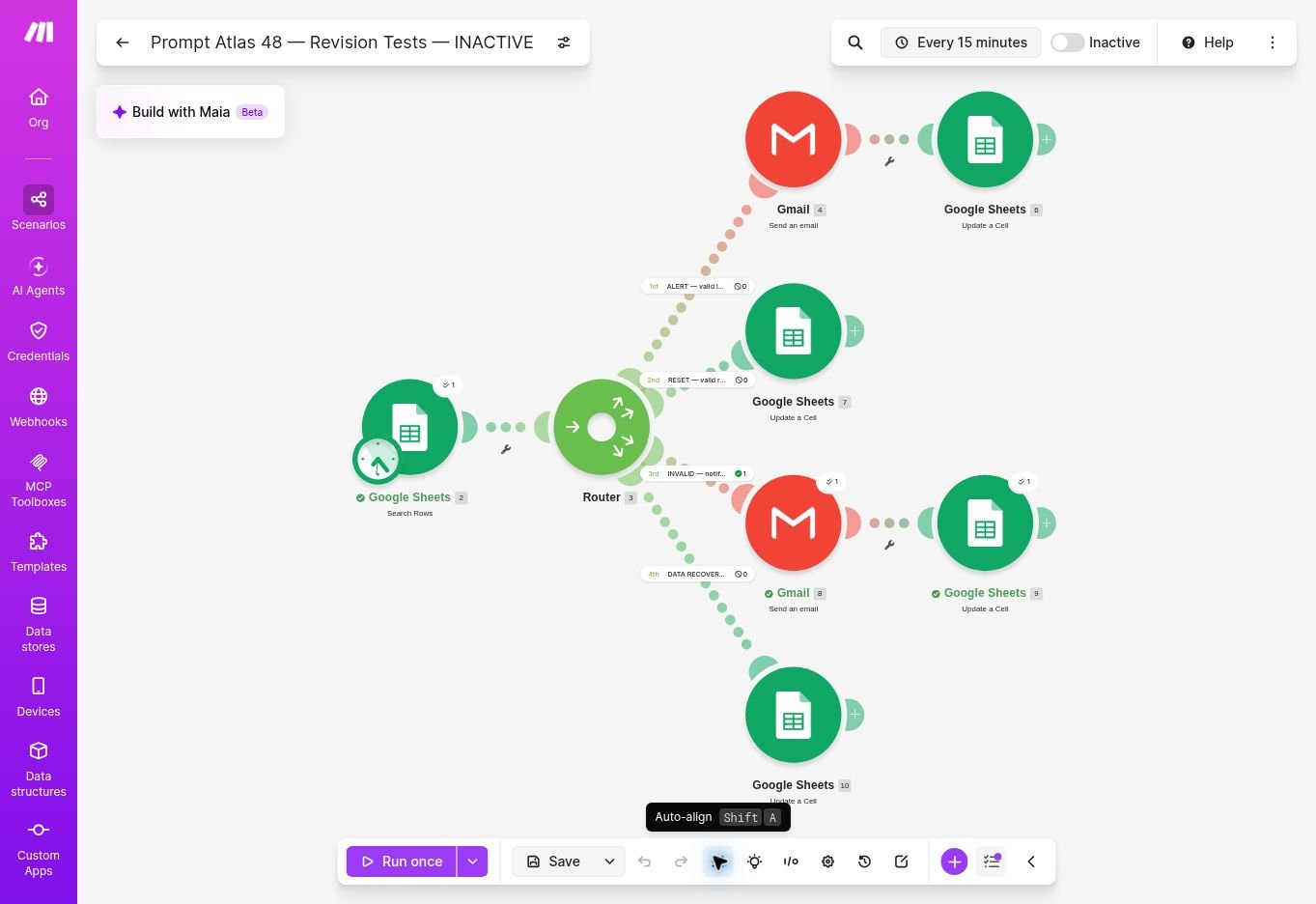
Tested in the follow-up copy: a third Router route checks Action = INVALID and DataIssueState ≠ NOTIFIED. It emails the owner the SKU, row number, quantity, and threshold, then records NOTIFIED in column H of the returned row. This is a data-repair warning, separate from a low-stock email.
Show the INVALID warning and recovery configuration
Add DataIssueState in H1 and start each row blank or CLEAR. Include H in Search Rows. The warning route uses two AND conditions: Action text-equal to INVALID, and DataIssueState text-not-equal to NOTIFIED. Its Update a Cell targets H plus the Search Rows row-number token and writes NOTIFIED after sending. A fourth route writes CLEAR to the same H cell when DataIssueState is NOTIFIED and Action is ALERT, RESET, or NONE. In the filter editor, use three OR groups, each combining one valid Action value with DataIssueState = NOTIFIED. Keep AlertState in E dedicated to stock episodes.
Observed cycle: setting RV-002’s quantity to unknown generated one received warning and NOTIFIED. An unchanged repeat generated no additional warning. Changing the quantity to 12 produced NONE and reset H to CLEAR. Reintroducing unknown generated a second received warning and NOTIFIED. Both messages went to my controlled inbox. The downloadable four-route variant includes this extension.
The extension still has a send-then-write failure window. It can miss a repair-and-rebreak event between checks and does not notify again merely because one invalid value changes to another while already marked NOTIFIED. Missing or broken Action formulas need separate checks. Its extra actions are excluded from the base credit estimate.
Original Results: Alert, Repeat, Restock, and New Drop
First Read and Three Alerts
An isolated Search Rows run returned seven records and displayed one operation and one credit.
Original test evidence 1 — archived editor view
Historical execution screenshot from October 28; unused assembly placeholders are not required workflow steps. Use the clean starter blueprint and configuration images above when building the scenario.
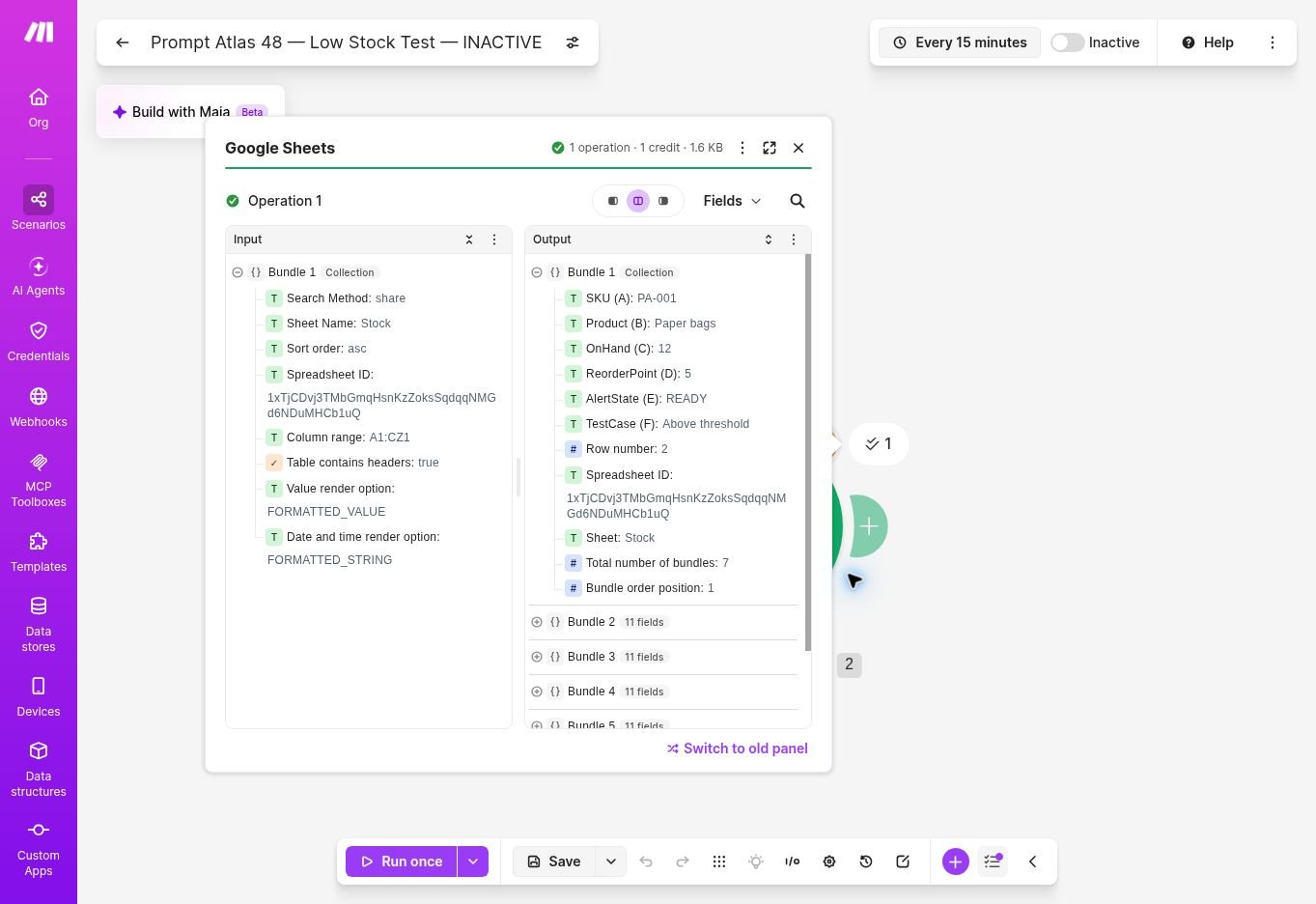
Recorded test: the isolated read returned seven records. This image documents that read, not delivery of an email.
The first complete run then sent messages for PA-002, PA-003, and PA-004 and completed three state writes. That included the boundary condition: PA-002 had five units and a reorder point of five, so it triggered under the chosen <= rule.
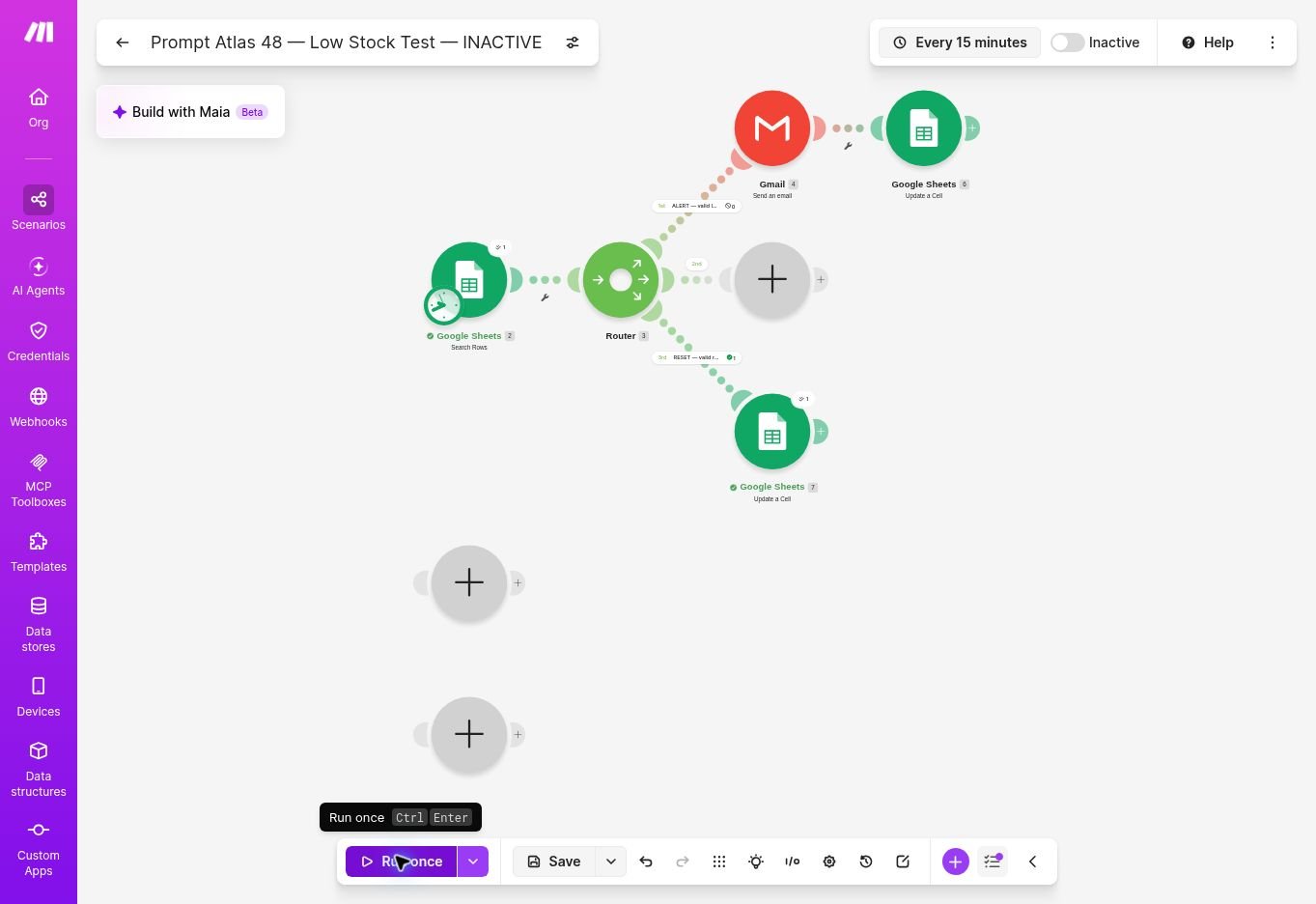
Original test evidence 2 — archived editor view
Historical execution screenshot from October 28; unused assembly placeholders are not required workflow steps. Use the clean starter blueprint and configuration images above when building the scenario.

Recorded first complete run: three Gmail actions and three ALERTED writes. Separate Gmail checks confirmed the messages in both Sent and Inbox.
The blank, text, and negative inputs were classified INVALID and did not generate stock emails. The above-threshold product also generated none.
Repeating the Unchanged Sheet
On the next manual run, the alert filter passed zero records. Gmail still contained the same three test messages.
This supports a specific finding: the stored state suppressed duplicates on the tested repeat run. It does not prove exactly-once delivery under failures or simultaneous execution.
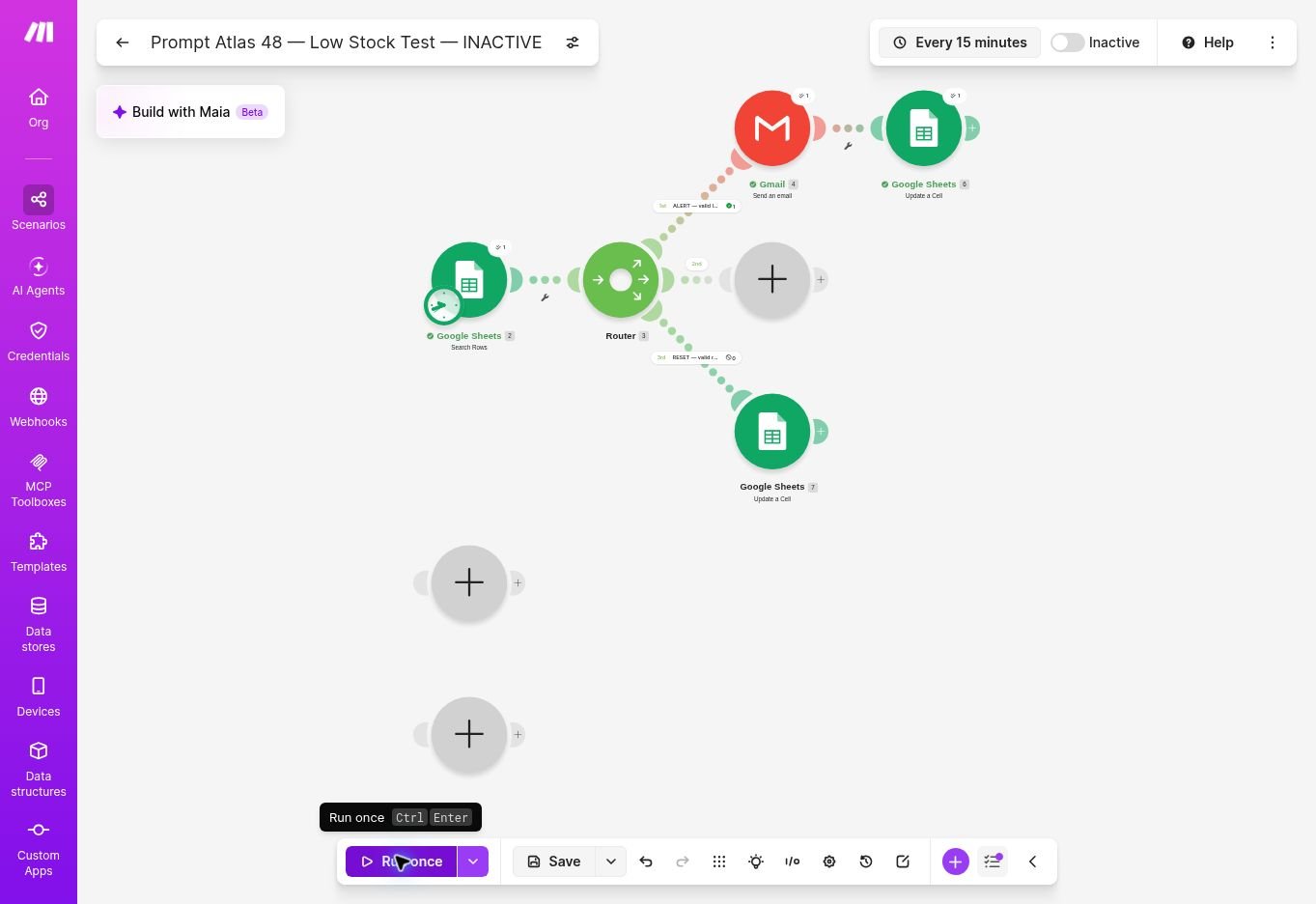
Restocking Packing Tape
I changed PA-003 from three units to nine, above its reorder point of five. The next run wrote READY. Once that write was reflected in the sheet, Action became NONE.
Original test evidence 3 — archived editor view
Historical execution screenshot from October 28; unused assembly placeholders are not required workflow steps. Use the clean starter blueprint and configuration images above when building the scenario.
Recorded restock test: PA-003 moved from three to nine units, allowing the reset branch to write READY.
Dropping Below the Threshold Again
Next, PA-003 fell from nine units to two. Another run produced the fourth received email, this time showing quantity two. The row returned to ALERTED, and Action became NONE after the state write.
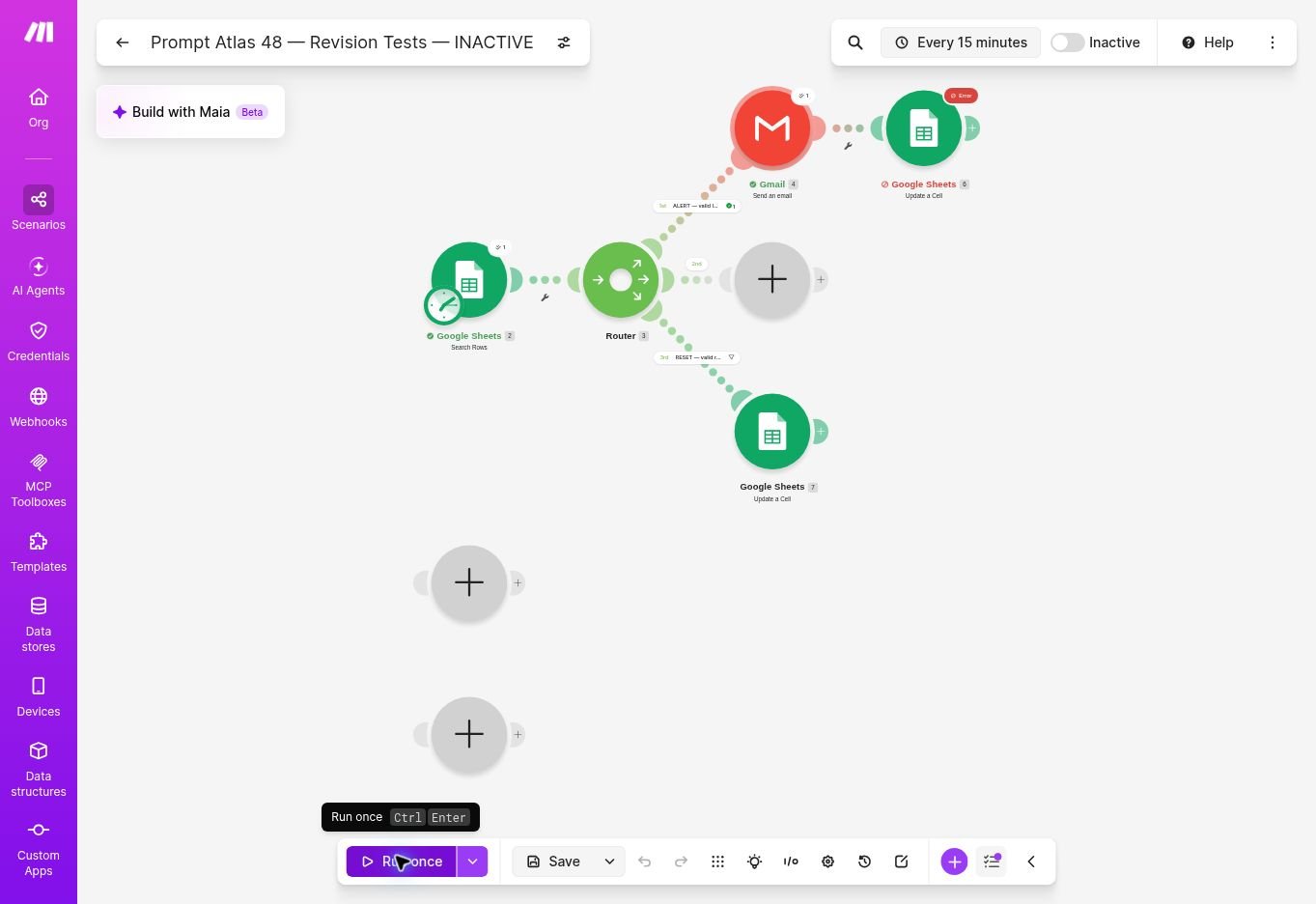
Original test evidence 4 — archived editor view
Historical execution screenshot from October 28; unused assembly placeholders are not required workflow steps. Use the clean starter blueprint and configuration images above when building the scenario.
Recorded new-drop test: the restocked item generated a new alert when its quantity fell again. Message receipt and the sheet state were checked separately.
The practical lesson is to test both directions. Preventing repeated emails is useful only if the workflow can also recognize a later low-stock episode.
Can This Fit Within Make Free?
Plan information checked October 29, 2026. Make’s official pricing page lists 1,000 monthly credits for Free and explains that actions consume credits, while the Router is an exception. The test interface offered a 15-minute interval; I left recurring execution inactive.
The isolated read displayed one credit. For the four full runs, the observed module actions correspond to the following calculation:
| Run | Read | Emails | State writes | Calculated credits |
|---|---|---|---|---|
| First complete run | 1 | 3 | 3 | 7 |
| Unchanged repeat | 1 | 0 | 0 | 1 |
| Restock reset | 1 | 0 | 1 | 2 |
| New stock decline | 1 | 1 | 1 | 3 |
Adding the isolated read gives 14 credits for the original tests. On October 31, the original scenario’s usage panel showed 14 credits and its history showed the complete-run costs of 7, 1, 2, and 3 credits. This confirms the original scenario total, rather than a final account-wide balance. Follow-up tests used a separate scenario and are excluded from this table.
For this workflow, assuming one read per run and the same one-credit actions, a planning estimate is:
Monthly credits ≈ scheduled reads + (2 × new alerts) + resets.
| Checking schedule | Reads in 30 days | Before emails and resets |
|---|---|---|
| Every 15 minutes, 24/7 | 2,880 | Exceeds 1,000 credits |
| Every hour, 24/7 | 720 | Leaves up to 280 credits |
| Once per day | 30 | Leaves up to 970 credits |
These are arithmetic projections, not month-long tests. They exclude retries, pagination, other scenarios, and any additional processing. Other workflows share the account allowance. An hourly check may fit a modest workload, but it is not automatically sufficient: the volume of new alerts and resets still matters.
Choose a schedule based on how quickly a person can act on the notification. This setup does not provide instant stock monitoring.
Where the Workflow Can Still Fail
Sending and recording state are separate actions. The October 31 follow-up demonstrated the failure window. In the test copy, I deliberately replaced the post-email cell target with invalid E0. Gmail delivered RV-001’s alert, then Sheets returned 400: INVALID_ARGUMENT — Unable to parse range. The row remained READY/ALERT. An unchanged run delivered a second copy and failed at the same write. After restoring E plus the returned row number, another run delivered the alert and stored ALERTED; the next unchanged run sent nothing. Three received messages were checked in Gmail, and the sheet state was checked independently. This controlled configuration fault does not simulate every outage, automatic retry, or overlapping execution.
A restock must be seen. If stock rises above the threshold and falls again between two reads, the workflow may never see the reset condition. An item can therefore remain ALERTED even though a real restock occurred.
Row numbers are not stable identities. The update targets the returned row number. Sorting, inserting, or deleting rows while an execution is in progress could cause a write to reach the wrong row. That concurrency risk was not tested.
The base workflow leaves INVALID visible in the sheet. The tested four-route extension adds a separate warning and recovery state. It improves visibility of bad data but inherits the same non-atomic send-and-write limitation.
The test also did not cover fractional quantities in the complete workflow, invalid thresholds, duplicate SKUs, unexpected state values, missing formulas, Gmail limits, exhausted credits, API outages, or weeks of unattended operation. The source quantities were maintained manually, without a point-of-sale integration or physical stock reconciliation.
Mitigation remains a follow-up test. A PENDING state before sending or an error-handling route may change the failure behavior, but neither was validated here. A PENDING design must also recover from a failure before delivery; otherwise it can suppress an alert that was never sent. The next useful test must check duplicate delivery, missed alerts, and recovery together.
Alternative to consider: Apps Script
Not tested here: Apps Script offers a code-based alternative using MailApp and an installable time-driven trigger, without consuming Make credits. It requires code maintenance, state logic, and error handling, and remains subject to Google’s email and execution quotas. Consider it if maintaining code suits your team better than Make’s visual routes; this is a documentation-based option, not a measured comparison. Documentation checked October 31, 2026.
What I Learned from Testing
For this task, the useful design choice was separating an alert episode from a low quantity. The quantity alone says that action may be needed. The saved state says whether this workflow has already notified someone about that episode.
The reset run was equally important: it showed that suppressing repeats did not permanently silence the item after a detected restock. The credit calculation added another decision for a small retailer. A workflow can run correctly in a manual test yet be poorly matched to a free allowance if it checks too frequently.
I would use this as a starting point for a small sheet whose owner can check invalid rows and maintain the formulas. A business needing real-time stock synchronization, purchasing approvals, or reliable handling of concurrent changes needs more than this test establishes.
Frequently Asked Questions
Can Google Sheets send a low-stock email through Make?
Yes. The original seven-product test produced four received messages across its alert/restock cycle. Follow-up failure/recovery and data-quality tests produced five more, for nine received messages overall. The separate 105-product check tested search coverage, not email delivery for every product.
Does it send another email every time stock is checked?
Not in the unchanged repeat run. ALERTED suppressed another message. The follow-up induced a failed state write and confirmed duplicate delivery on the next unchanged run. Overlapping runs and automatic retries remain untested.
Does a product at its reorder point trigger an alert?
Yes, under this formula. Stock equal to the threshold qualifies. Use a strict less-than rule only if that is the behavior your business intends.
Does the workflow reorder inventory automatically?
No. It sends a notification. It does not select a supplier, calculate a purchase quantity, place an order, or forecast demand.






Leave a Reply