
Webflow AI can generate a multi-page website from a prompt, but I wanted to see how much of that first draft was actually usable without manual cleanup. For this Webflow AI review, I built a fictional local-service business called NorthPeak Home Services and tested the platform across five practical workflows: site generation, content rewriting, branding and navigation, SEO, and responsive design.
Webflow produced a coherent five-page structure and handled metadata and responsive changes well. The draft also contained unrelated branding, generic copy, placeholder logos, and a fictional phone number. Those details shaped the test results below.
Quick Verdict
Webflow AI is strongest when you want AI to accelerate the structure and refinement of a real Webflow site, while still keeping the full visual editor available afterward. In my tests, the multi-page generation, SEO metadata workflow, and responsive optimization were the most useful features. The biggest weakness was cleanup: some generic assets and component-level content survived even after targeted AI instructions.
Want to try the same workflow? Explore Webflow AI Site Builder on the official site and check which Site or Workspace plan fits your project before publishing.
Webflow AI Review: Results at a Glance
| Test | Result | Main finding |
|---|---|---|
| 1. Multi-page generation | Strong | Created five relevant pages and a coherent structure, but generic template copy remained. |
| 2. AI content rewrite | Mixed | The hero became business-specific, while unrelated branding and some placeholder content remained. |
| 3. Branding & navigation | Limited | The AI could not update the global navigation component; “Dataway” was embedded in an SVG asset. |
| 4. SEO metadata | Strong, with one missing piece | Applied SEO title, meta description, and Open Graph text; the Open Graph image stayed empty. |
| 5. Responsive optimization | Strong | Detected smaller-screen layout issues and improved typography, spacing, grids, and button alignment. |
How I Tested Webflow AI
I started with Webflow’s AI Site Builder and described a fictional Denver handyman and home-maintenance company. The prompt specified the audience, services, conversion goal, desired sections, tone, and visual direction. The business offered minor repairs, seasonal maintenance, furniture assembly, drywall repair, painting touch-ups, and general handyman work.
Prompt brief (reconstructed from test notes, not the original verbatim prompt): The exact prompt was not retained. This version preserves the business details and requested outcome that I recorded during the test.
Create a multi-page site for NorthPeak Home Services, a fictional handyman and home-maintenance business serving homeowners in Denver. Include minor repairs, seasonal maintenance, furniture assembly, drywall repair, painting touch-ups, and general handyman work. Aim to encourage quote requests. Use clear, trustworthy copy and a practical home-services visual style. Include service information, an about page, a service-area page, a request-a-quote page, FAQs, contact options, and prominent calls to action.
I kept the generated site as intact as possible so I could separate what the AI produced on its own from what required a second prompt or manual inspection. I did not publish the fictional business site or test real lead submissions, ecommerce, long-term performance, analytics, or custom-domain setup. I did not log per-test elapsed time or attempt counts, so I cannot give a reliable time-saved estimate.
Plan disclosure: I could not verify the exact Site or Workspace tier that was active during this session from the retained test notes. Webflow proposed five pages in my account, but that observation does not establish which paid plan enabled it. Webflow states that sites without a paid Site or Workspace plan are limited to two static pages.
Test 1: Can Webflow AI Build a Complete Multi-Page Site?
Result: Strong
The first result was promising. Webflow interpreted the business description and proposed five pages: Home, Services, Request a Quote, Service Area, and About. It also distributed sections such as testimonials, FAQs, contact forms, galleries, calls to action, and service information across those pages without me manually assigning each section.
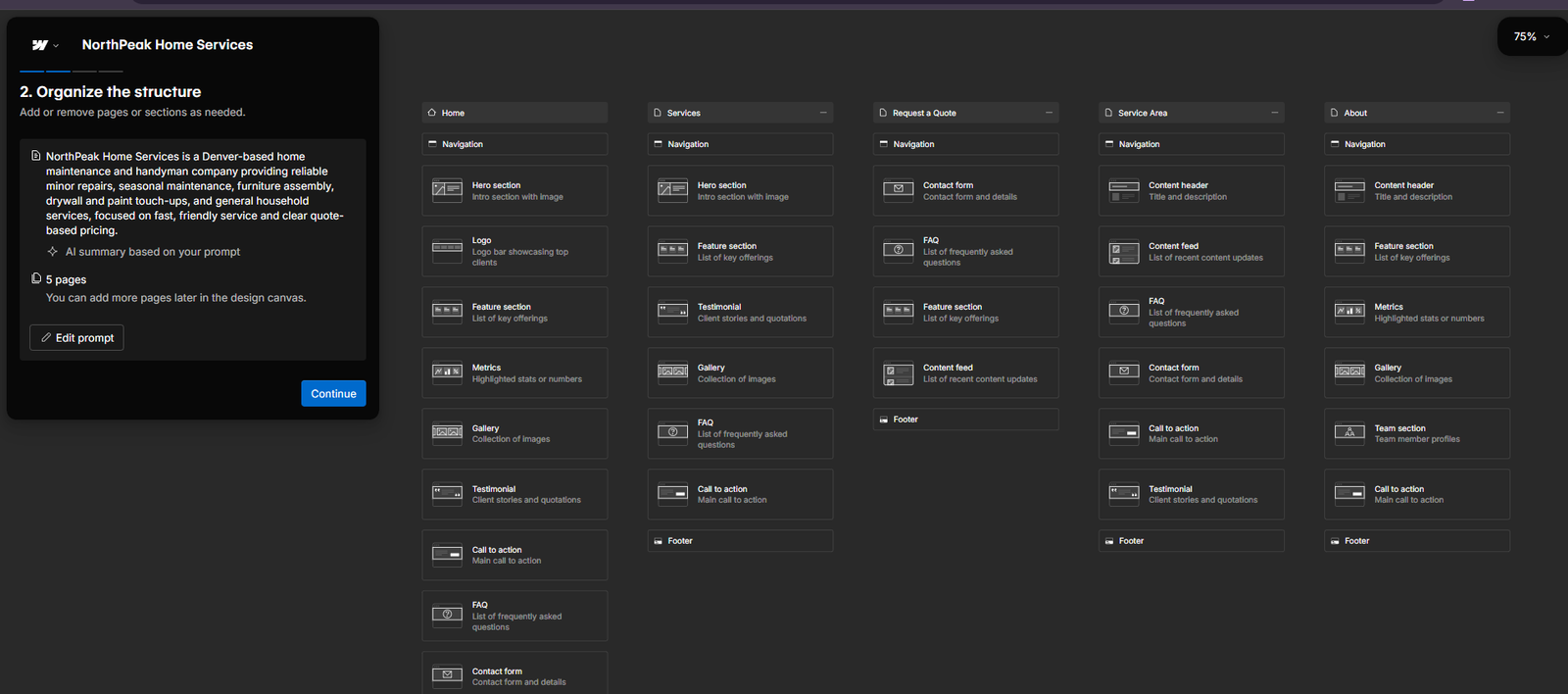
This was one of the strongest parts of the test because the AI did more than produce a single landing page. It created a basic information architecture that made sense for a local service business.
Webflow’s current documentation says the AI Site Builder can generate a professional multi-page site, and with a paid Workspace or Site plan it can generate up to five pages initially. Without a paid Workspace or Site plan, the site is limited to two pages total. See the official AI Site Builder documentation.
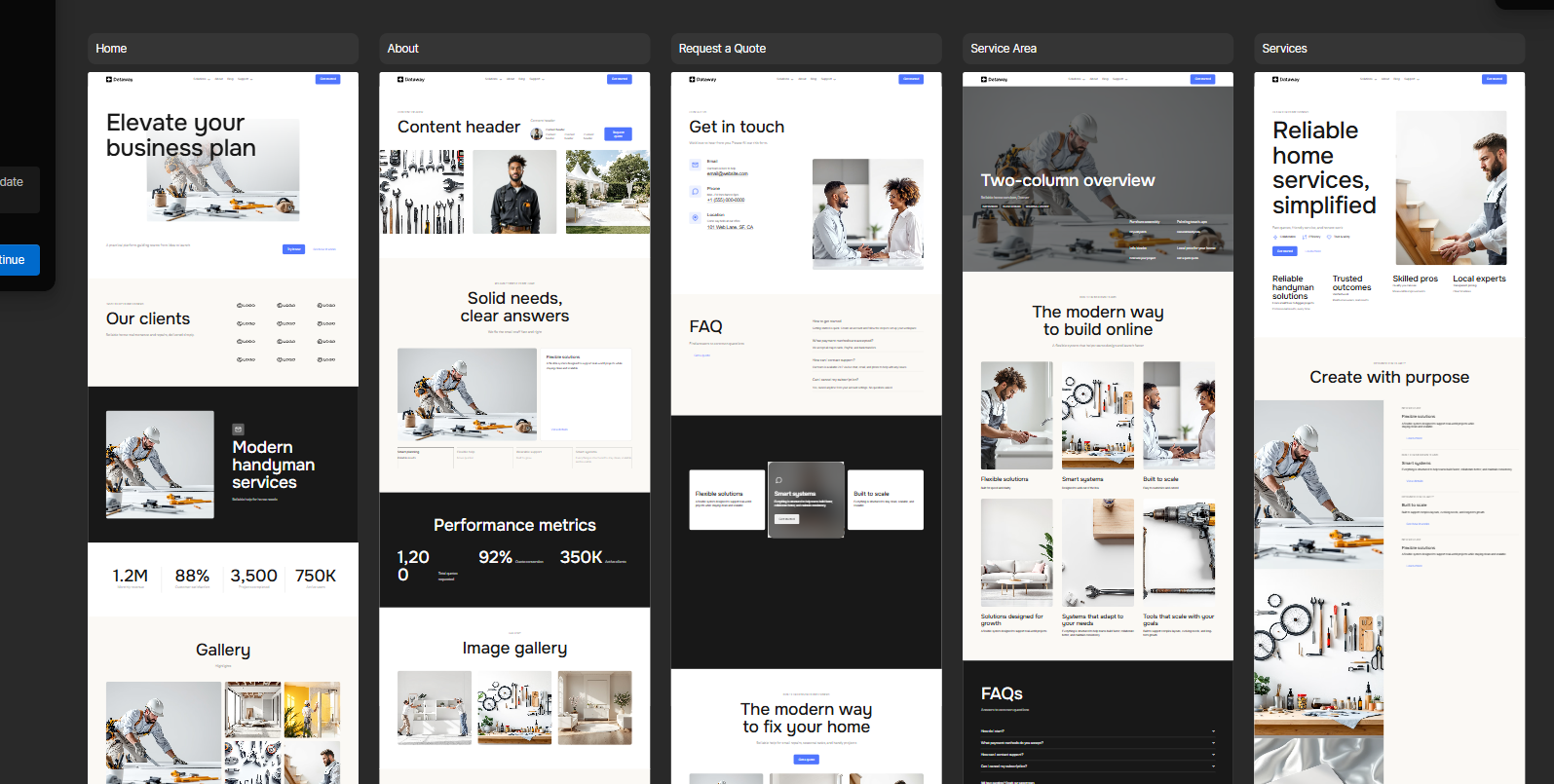
The visual draft, however, showed why the generated site still needed review. The layouts and imagery were relevant to home services, but several pages included generic headings and template-style content such as “Elevate your business plan,” “Content header,” and unrelated performance metrics.
Test 2: Can the AI Rewrite the Generated Content?
Result: Mixed
I asked the Webflow AI Assistant to rewrite the Home page for NorthPeak Home Services while keeping the existing structure. I also told it not to invent customer numbers, awards, years in business, ratings, testimonials, or performance statistics.
The hero improved immediately. The generic headline was replaced with “Dependable Handyman & Home Repairs in Denver,” which matched both the service category and the location in the test scenario.
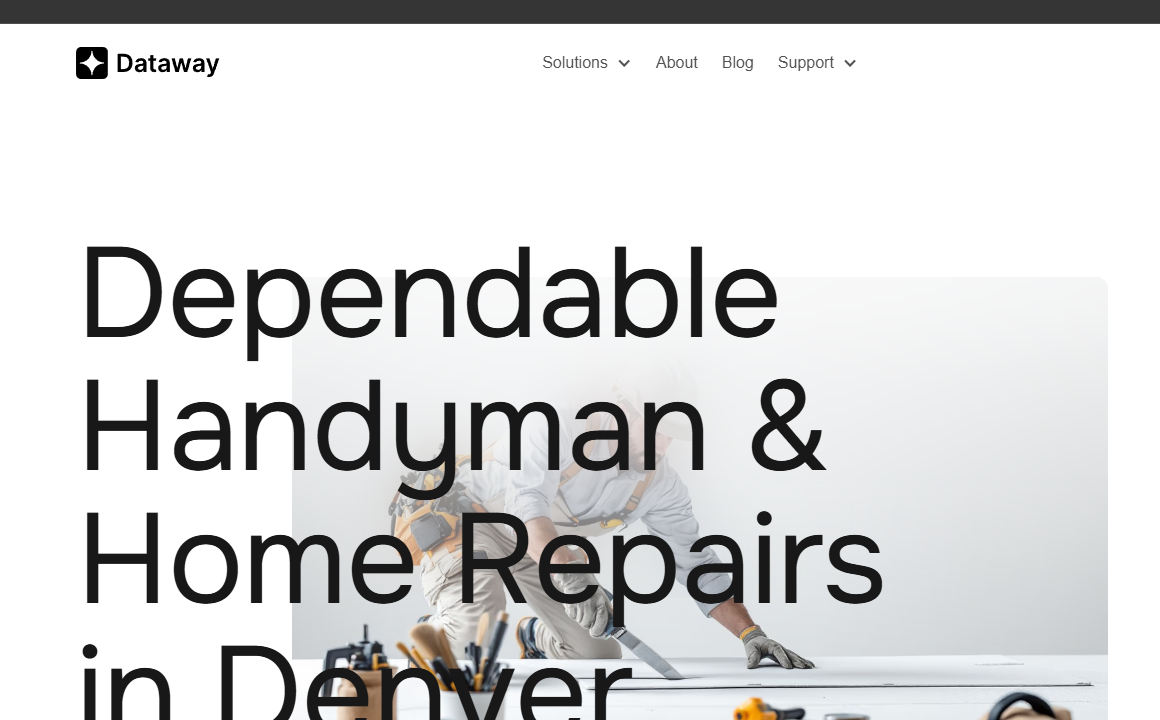
The rewrite was not complete, though. “Dataway” remained in the header, the navigation still used generic items, and other leftover copy appeared lower on the page. The Assistant’s message suggested a broader cleanup than the rendered page actually showed, so I would verify every AI edit visually rather than relying only on the confirmation message.
Test 3: Can Webflow AI Fix Branding and Navigation?
Result: Limited
Next, I gave the AI a targeted instruction: replace “Dataway” with “NorthPeak Home Services” and update the navigation to Home, Services, Service Area, About, and Request a Quote. This exposed an important limitation.
The AI Assistant explained that the navigation was inside a main component and that the relevant content could not be edited directly from that context. When I inspected the header manually, I found that “Dataway” was not ordinary text at all — it was part of a placeholder.svg image asset.
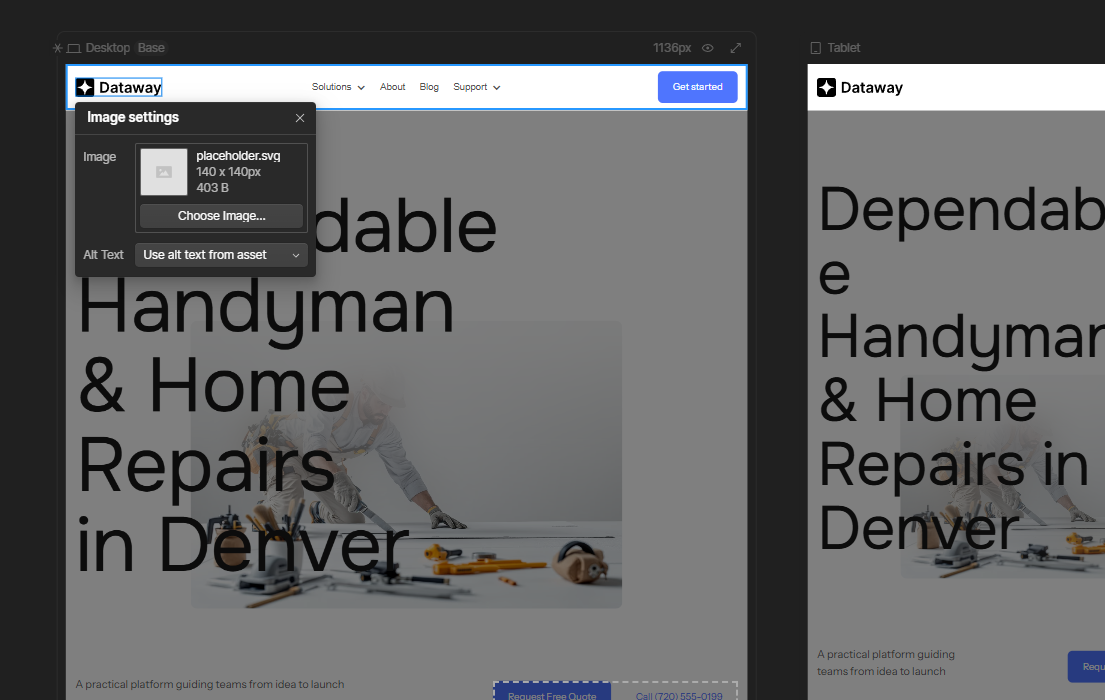
That is the kind of issue a user could easily miss if they assume the AI has updated the whole site. Webflow remained fully editable, but this particular cleanup step required manual inspection of the component and asset rather than another general rewrite prompt.
Test 4: Webflow AI SEO Optimization
Result: Strong, with one missing piece
For the SEO test, I first asked the Assistant what it could update before authorizing changes. It identified the page title, meta description, Open Graph metadata, headings, on-page copy, and image alt text as possible SEO improvements. I then limited the instruction to metadata so the visible design would stay unchanged.
The AI applied this SEO title: “NorthPeak Home Services | Handyman & Home Maintenance in Denver, CO.” It also wrote a local-service meta description covering minor repairs, drywall patching, furniture assembly, seasonal upkeep, and painting. I verified the values directly in Page Settings rather than relying on the Assistant’s message.
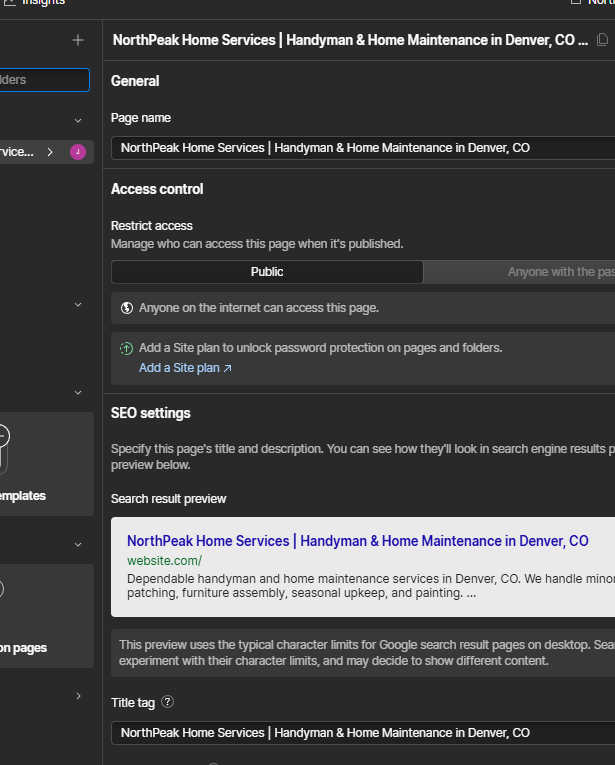
The Assistant also populated the Open Graph title and description. The Open Graph image remained empty, so the social-sharing setup was not completely finished automatically.
Test 5: Can Webflow AI Fix Mobile Responsiveness?
Result: Strong
The original smaller breakpoints had visible problems. On Tablet, the headline broke awkwardly, and the mobile layouts showed cramped spacing and less balanced content. I first asked the AI to diagnose the responsive issues without making changes.
It identified oversized headings, compressed grids, button and action alignment problems, and container spacing that needed adjustment across Tablet, Mobile Landscape, and Mobile Portrait.
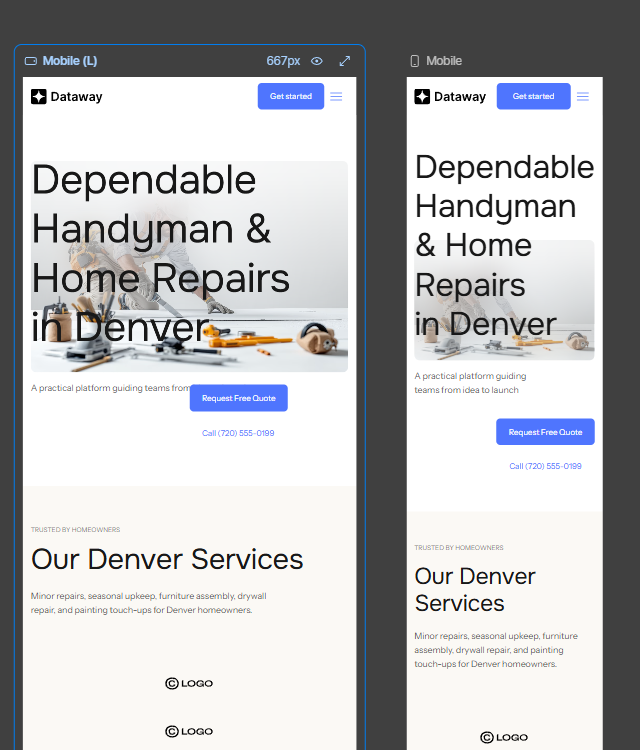
I then authorized only responsive CSS changes and explicitly told the Assistant not to rewrite the copy, navigation, branding, phone number, images, SEO metadata, or desktop design.
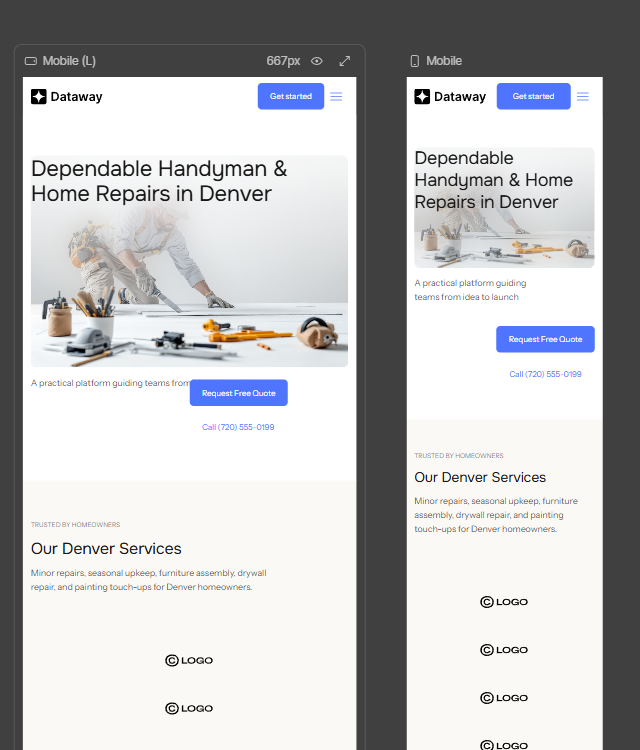
The result was noticeably cleaner. The mobile heading became easier to read, spacing improved, and the CTA alignment looked more intentional. I also checked the Desktop breakpoint afterward and the desktop layout remained unchanged, which showed that the Assistant respected the scope of the instruction.
What Webflow AI Did Well
The strongest part of Webflow AI was not any single piece of generated copy. It was the combination of site structure, editable Webflow components, and an Assistant that could work inside the generated project. The initial five-page architecture was useful, the SEO workflow was easy to verify, and the responsive repair was more practical than simply generating another version of the page.
The platform also kept the site inside the normal Webflow environment, so the AI-generated starting point did not lock me into a separate simplified editor. That matters if you want to keep refining layout, components, CMS content, and design details after the AI has done the first pass.
Where Webflow AI Still Needs Human Review
The biggest limitation was consistency. The AI could correctly rewrite the main hero while leaving unrelated branding, generic navigation, placeholder logos, and a fictional phone number elsewhere on the same page. A generated site can look convincing at a glance while still containing details that should never be published without checking.
The branding test also showed that AI editing can stop at component or asset boundaries. If important text is embedded in an image, SVG, or non-exposed component property, a content rewrite may not touch it. In those cases, the regular Webflow editor is still necessary.
For that reason, I would verify every business claim, phone number, email address, CTA destination, form, image, alt text, navigation item, and social-sharing field before publishing an AI-generated site.
Webflow AI Pricing
Pricing last checked: September 24, 2026. Webflow currently lists a free Starter Site plan, a Basic Site plan at $15/month billed yearly, and a Premium Site plan at $25/month billed yearly. Prices are listed in USD per site, with applicable taxes added at checkout. Check Webflow’s current pricing page.
| Plan | Current annual-billing price | Useful context |
|---|---|---|
| Starter | Free | Webflow.io domain, limited CMS, and 2 static pages. |
| Basic | $15/month | Custom domain and up to 300 static pages; designed for sites that do not need Webflow CMS. |
| Premium | $25/month | Includes Webflow CMS and additional content-focused features. |
Site plans cover hosting and publishing for an individual site; Workspace plans govern the editing environment, collaboration, and AI credits. A paid plan of either type permits the AI Site Builder to generate up to five pages initially, while a site with neither paid plan is limited to two static pages. The AI Site Builder itself does not consume AI credits, although other Webflow AI features may.
Is Webflow AI Worth It?
Best for: designers, freelancers, and teams who want AI to map a site quickly and then refine it in Webflow’s visual editor. In my test, metadata and breakpoint-specific fixes were easy to inspect directly.
It is less convincing as a one-click publishing tool. The generated site still needed factual cleanup, branding corrections, and manual inspection of global components and assets. If you want the AI to make the first major set of decisions and then continue editing in Webflow, the workflow makes sense. If you expect a finished business site from one prompt with no review, this test showed why that is still risky.
If you want a simpler all-in-one builder to compare, read our Hostinger AI Website Builder review. For more business-focused AI tools, browse the Prompt Atlas AI Tools for Business hub.
For another guided option, see our Wix AI Website Builder review, which tests a freelancer site. Webflow offered more visual control in this project, while the Hostinger and Wix tests show different ways to get a first draft online.
Frequently Asked Questions
Can Webflow AI create more than one page?
Yes. Webflow’s current AI Site Builder supports multi-page generation. The Help Center says a paid Workspace or Site plan allows up to five initial pages, while sites without either paid plan are limited to two pages total.
Does Webflow AI create SEO metadata?
Yes. In my test, the AI Assistant successfully generated and applied the SEO title, meta description, Open Graph title, and Open Graph description. It did not automatically set the Open Graph image.
Can Webflow AI fix mobile layouts?
It did in this test. The Assistant identified typography, grid, spacing, and button-alignment problems on smaller breakpoints and then applied responsive changes that improved the mobile layouts without changing the Desktop breakpoint.
Is the AI-generated site ready to publish immediately?
I would review it carefully first. My generated site still contained unrelated branding, generic text, placeholder logos, and a fictional phone number after the first rounds of generation and rewriting.
Does the AI Site Builder use Webflow AI credits?
Webflow’s current Help Center says the AI Site Builder itself does not consume Webflow AI credits. See the official documentation.
Final Takeaway
The most convincing result was the responsive repair: the mobile layouts improved while the Desktop breakpoint stayed as it was. The branding test exposed a different limit: an SVG asset preserved unrelated text after the AI said it had updated the page.
My takeaway: use Webflow AI to build and refine the draft, then inspect the rendered pages, components, assets, forms, and sharing fields before launch.


Leave a Reply