
Quick answer: In this Reclaim AI review, I tested five scheduling workflows to see how well several automation rules could coexist. Reclaim protected 10 hours of Focus Time, inserted a recurring client follow-up Habit, let the AI Assistant move one occurrence in Preview Mode, created a public 30-minute booking flow that respected protected time, and placed a one-hour task around existing commitments.
Quick Verdict
Best for: calendar-heavy professionals and small teams that want automation around focus time, recurring work, meetings, and booking links.
What impressed me most: the automations interacted instead of behaving like isolated features. Habits, Focus Time, bookings, and AI-planned tasks could share the same week without obvious conflicts.
Biggest caveat: Reclaim 2.0 can reshuffle flexible blocks after a change, and its new Tasks workflow is different from older Reclaim tutorials.
Test result: 4 Pass, 1 Pass with a caveat.
Results at a Glance
Swipe horizontally to view the full table on mobile.
| Test | Result | What happened |
| 1. Focus Time | Pass | Reclaim scheduled five 2-hour blocks across Monday-Friday, hitting the 10-hour weekly goal. |
| 2. Recurring Habit | Pass | A 30-minute weekday client follow-up routine was added and Focus Time shifted around it. |
| 3. AI Assistant + Preview Mode | Pass with a caveat | Only Wednesday’s Habit moved to 3:00 PM, but Wednesday Focus Time also moved into the newly opened morning slot. |
| 4. Scheduling Link | Pass | The public booking page avoided protected blocks, created a 30-minute Google Meet, and added the booking to the Planner. |
| 5. Task + AI Scheduling | Pass | The AI placed a one-hour proposal task at 11:30 AM after the existing Habit and Focus Time blocks. |
What Is Reclaim AI?
Reclaim is an AI calendar assistant that sits on top of your calendar and helps protect time, manage recurring routines, coordinate meetings, and adapt the schedule as priorities change. My account opened in Reclaim 2.0, where the core experience is built around the Planner, AI Assistant, Preview Mode, and background scheduling Agents.
One important context point: Reclaim’s own help center still describes Reclaim 2.0 as an evolving private beta. That matters for this review because readers on Reclaim 1.0 may see different menus and a different Tasks workflow. I am describing the interface and behavior I actually tested on October 2, 2026.
Reclaim AI Review: How I Tested It
I connected a Google Calendar to a new Reclaim account and tested five linked workflows in the same calendar week. I intentionally kept the tests connected: later tests had to work around the blocks created earlier, so the product had to manage real scheduling interactions instead of five isolated demos.
Test scope: I used one Reclaim account, one connected Google Calendar, and one workweek. The results show how these five workflows behaved in that setup; they should not be read as a benchmark of every team configuration, calendar provider, or long-term scheduling pattern.
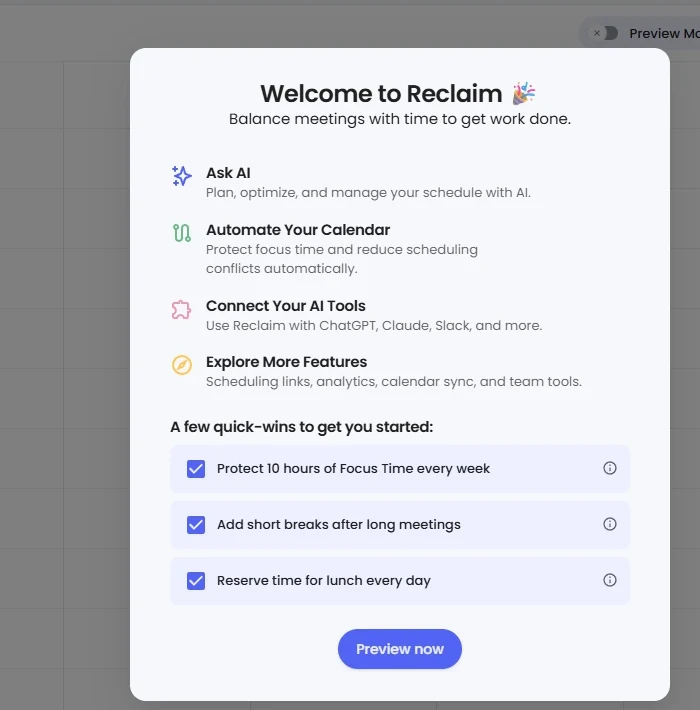
I tested on Reclaim’s 14-day trial. Reclaim’s help center says new accounts receive a 14-day trial and automatically move to the free Lite plan if they do not upgrade; the account is not charged unless the user chooses a paid plan. My trial banner showed 14 days remaining during testing.
Tap or click the screenshot to view it at full size.
My Reclaim onboarding screen showed a 14-day trial and offered Focus Time, breaks, and lunch as quick-start automations.
Test 1: Can Reclaim Protect 10 Hours of Focus Time?
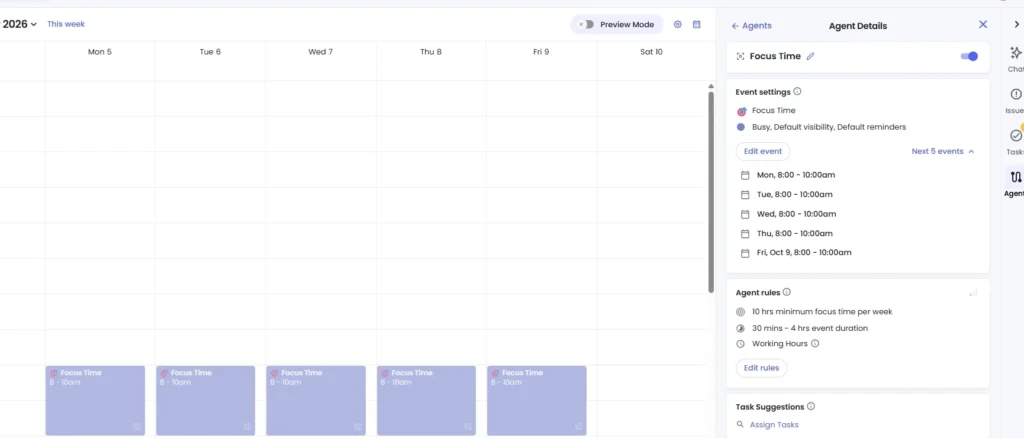
I started with the onboarding option to protect 10 hours of Focus Time per week. In Preview Mode, Reclaim created five blocks of two hours each across the next complete workweek: Monday through Friday, 8:00-10:00 AM. The Agent rules showed a 10-hour minimum weekly goal and allowed individual Focus Time events from 30 minutes to 4 hours.
After I applied the change, the same five blocks remained on the calendar with Preview Mode off. That gave me a clean before-and-after check: Reclaim did not merely suggest the plan; it actually applied the 10-hour schedule.
Result: PASS. The weekly target was met exactly, and the scheduling logic was visible before I committed the change.
Tap or click the screenshot to view it at full size.
Reclaim applied five two-hour Focus Time blocks, totaling 10 hours across the workweek.
Test 2: Can a Recurring Habit Fit Around Focus Time?
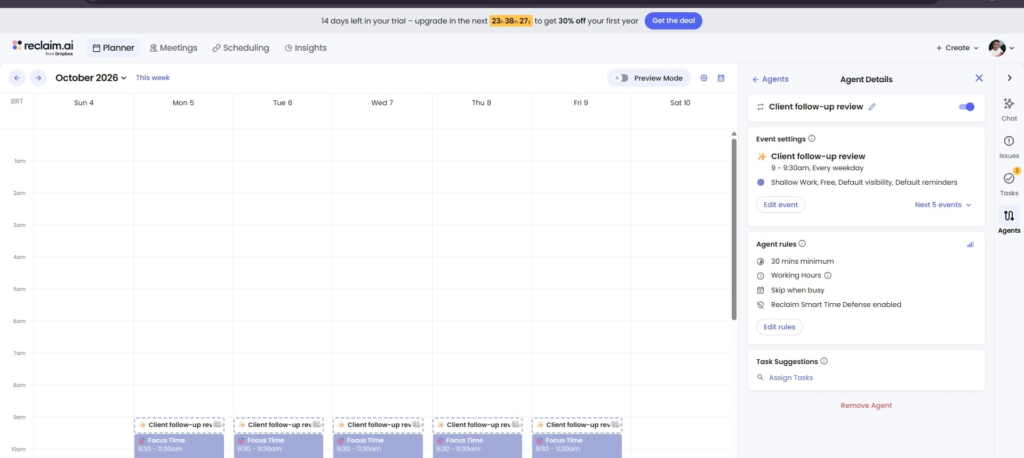
Next I created a Custom Work Habit called “Client follow-up review.” I set it to 30 minutes every weekday. Reclaim’s Habit rules also showed “Skip when busy” and Smart Time Defense, which are designed to keep the routine flexible as the calendar fills up.
The useful part was not simply that the Habit appeared. Reclaim moved the existing Focus Time later to make room: the weekday Habit occupied 9:00-9:30 AM and Focus Time shifted to 9:30-11:30 AM. I did not have to manually rebuild the week.
Result: PASS. The recurring routine was added across all five weekdays and the earlier Focus Time automation adapted around it.
Tap or click the screenshot to view it at full size.
The weekday Client follow-up review Habit was added at 9:00 AM, while Focus Time shifted later instead of conflicting with it.
Test 3: Does the AI Assistant Follow a Precise Calendar Instruction?
For the third test, I used Reclaim Chat with Preview Mode enabled and gave it one narrow instruction: “Move my Client follow-up review on Wednesday to 3:00 PM and keep the rest of the week unchanged.”
The Assistant identified the correct recurring event and proposed moving only Wednesday’s instance to 3:00-3:30 PM. Monday, Tuesday, Thursday, and Friday stayed at 9:00 AM. Reclaim did not push the change live until I approved it.
There was a caveat. Once Wednesday’s 9:00 AM slot opened, Reclaim moved that day’s Focus Time from 9:30-11:30 AM to 8:00-10:00 AM. The requested Habit change was correct, but “keep the rest of the week unchanged” did not freeze every flexible block on Wednesday. That is logical for a self-optimizing calendar, but it is worth knowing if you expect a chat instruction to preserve the exact layout around it.
Result: PASS WITH A CAVEAT. The AI followed the event-level instruction, but the background scheduler used the newly available space and changed another flexible block on the same day.
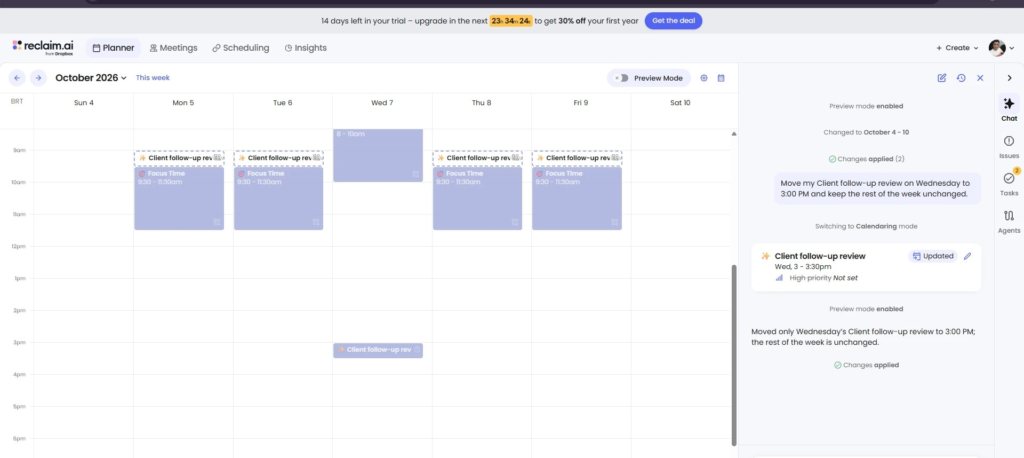
Tap or click the screenshot to view it at full size.
The AI Assistant moved only Wednesday’s Habit to 3:00 PM and applied the change; Wednesday Focus Time also shifted earlier.
Test 4: Does the Scheduling Link Respect Protected Time?
I created a public Scheduling Link called “30-Minute Client Consultation” with Google Meet, 30-minute duration, a four-hour minimum notice window, and availability based on my meeting hours. I then opened the link in an incognito browser so I could see the booking flow like an external client.
On Wednesday, October 7, Focus Time occupied 8:00-10:00 AM. The first public slot shown was 10:00 AM, so the booking page did not offer a meeting inside that protected block.
Later that day, the Client follow-up review Habit occupied 3:00-3:30 PM. The public page offered 2:30 PM, then skipped 2:45, 3:00, and 3:15, and resumed at 3:30 PM. That is exactly what I wanted to see from a 30-minute booking system: any start time that would overlap the Habit was removed.
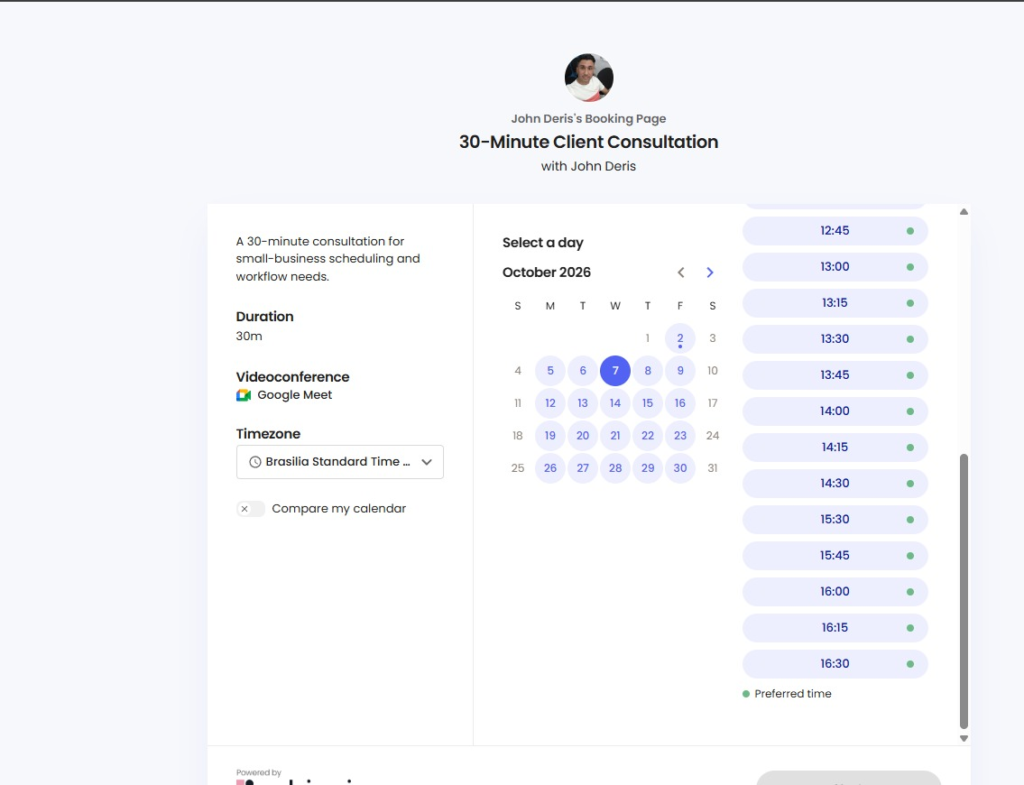
Tap or click the screenshot to view it at full size.
The public booking page skipped start times that would overlap the 3:00-3:30 PM Habit, then resumed availability at 3:30 PM.
I booked the 3:30-4:00 PM slot as “Alex Carter.” The flow confirmed the meeting, generated a Google Meet, sent the confirmation email, and inserted “Client Consultation with Alex Carter” into the Reclaim Planner immediately after the Habit.
Result: PASS. The booking link respected protected calendar blocks and completed the workflow from public availability to a confirmed meeting on the Planner.
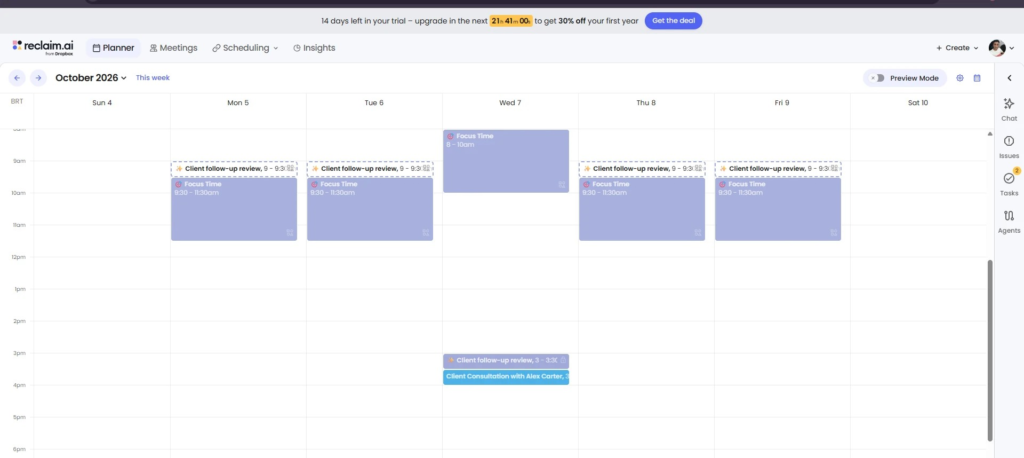
Tap or click the screenshot to view it at full size.
The confirmed client consultation appeared in the Planner from 3:30-4:00 PM, directly after the protected Habit.
Test 5: Can Reclaim Plan a Task Around Existing Commitments?
I created a one-hour task called “Prepare client proposal,” with a start and due date of Thursday, October 8. At first, the Task appeared in Reclaim Tasks but not as a named event on the calendar.
That is not necessarily a failure in Reclaim 2.0. Reclaim’s current Tasks documentation says the 2.0 workflow is centered on AI-assisted prioritization and that individual Task events are not automatically scheduled onto the calendar. This is different from older Reclaim 1.0 explanations, so it is an important version-specific distinction.
I then asked the AI Assistant: “Block 1 hour for my task ‘Prepare client proposal’ on Thursday, October 8. Keep my existing Focus Time and Client follow-up review unchanged if possible.” Reclaim switched into Task Planning mode and placed the work block at 11:30 AM-12:30 PM, immediately after the 9:00-9:30 AM Habit and 9:30-11:30 AM Focus Time.
After I applied the change, the task remained at that time and the earlier blocks were preserved.
Result: PASS. Reclaim 2.0 did not automatically create a named calendar block when I created the Task, but the AI Assistant scheduled it cleanly when asked and respected the existing plan.
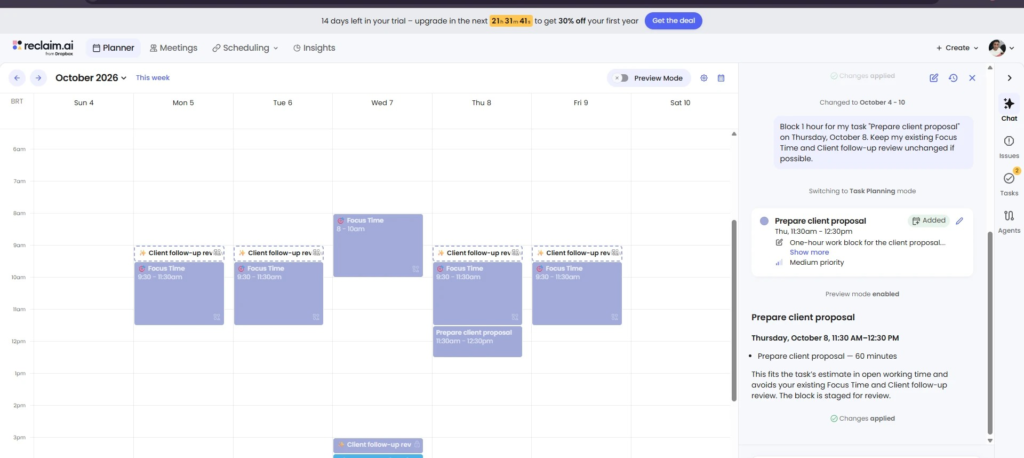
Tap or click the screenshot to view it at full size.
Reclaim placed the one-hour proposal task at 11:30 AM-12:30 PM after the existing Habit and Focus Time, then applied the change.
What Reclaim Did Well in My Tests
Preview Mode made the automation safer. I could inspect proposed changes before they touched the live calendar.
Focus Time and Habits behaved like flexible scheduling rules rather than fixed calendar blocks.
The public Scheduling Link respected both Focus Time and a recurring Habit when calculating bookable slots.
The AI Assistant understood narrow natural-language instructions and could stage the result for review.
Later workflows worked around earlier ones, which is more useful than testing each feature in isolation.
Where Reclaim Needs Care
A flexible calendar can change more than you expect. Moving one Wednesday Habit also caused Wednesday Focus Time to shift.
Reclaim 2.0 Tasks work differently from many older reviews and tutorials: creating a Task did not automatically add a visibly named task event to my calendar.
The interface has a learning curve. Agents, Hours, priorities, Preview Mode, Tasks, and Scheduling Links are powerful, but they create more setup choices than a basic calendar or booking tool.
The product needs meaningful calendar access to deliver its value. Users who do not want an automation layer editing calendar events may prefer a lighter scheduling tool.
Reclaim Pricing in 2026
Pricing last checked: October 2, 2026. Reclaim’s current pricing page shows a free Lite plan plus Starter, Business, and Enterprise tiers. Annual billing is discounted versus monthly billing.
Swipe horizontally to view the full table on mobile.
| Plan | Annual rate | Monthly rate | Useful limit to know |
| Lite | Free | Free | 1 user, 1-week scheduling range, 1 Scheduling Link |
| Starter | $10/seat/mo | $12/seat/mo | Up to 10 seats; 8-week scheduling range |
| Business | $15/seat/mo | $18/seat/mo | Up to 100 seats; 12-week scheduling range |
| Enterprise | $22/seat/mo | Not offered monthly | 100+ seats; 12-week scheduling range |
The free Lite plan is more than a demo, but it has tighter limits. Reclaim currently lists a one-week scheduling range, one Calendar Sync, and one personal Scheduling Link on Lite. Paid plans expand the scheduling horizon and automation limits. Because pricing and plan limits can change, check the official pricing page before purchasing.
Who Reclaim Is Best For
Consultants and service businesses that need client booking plus protected work time in the same calendar.
Knowledge workers whose calendars are already busy enough that manual time-blocking becomes maintenance work.
Small teams that want recurring routines, focus protection, and scheduling links to follow shared rules.
People comfortable reviewing AI-generated calendar changes before applying them.
Reclaim AI Alternatives to Consider
Reclaim is not the only way to combine scheduling and calendar planning. I did not retest the alternatives below for this article, so treat this as a positioning guide based on their current public product descriptions, not a head-to-head benchmark.
Motion
Motion is the closest alternative here if your priority is automatic task planning as well as calendar management. Its current AI Calendar and task manager are built around scheduling work from deadlines, priorities, and available capacity, then replanning when the day changes. Reclaim felt more calendar-rule-driven in my test; Motion positions itself more as an all-in-one work planner.
Akiflow
Akiflow is worth considering if you want tasks and calendars in one planning workspace with more deliberate time-blocking. Its current product combines calendar, task management, integrations, and an AI assistant, with tools for planning and locking tasks onto the calendar. That makes it a useful comparison for users who want more direct control over when work is blocked.
Calendly
Calendly is the more focused alternative if your main problem is external meeting booking rather than protecting Focus Time or rearranging tasks. Its scheduling product centers on booking links, availability rules, buffers, meeting limits, and calendar conflict checks. Reclaim covered that booking workflow in my test, but its broader value came from managing flexible work around the meetings.
Who Should Skip Reclaim
People with mostly empty calendars who do not need conflicts or focus time to be actively managed.
Users looking primarily for a full project-management system rather than a calendar automation layer.
Anyone who wants every calendar block to stay exactly where it was placed unless they move it manually.
FAQ
Does Reclaim have a free plan?
Yes. Reclaim currently offers a free Lite plan. New accounts also receive a 14-day trial before rolling to Lite if they do not upgrade.
Does Reclaim apply AI changes automatically?
In the workflows I tested through Chat, Preview Mode let me review staged changes before applying them. Background Agents can still keep flexible blocks optimized after setup.
Can Reclaim replace Calendly?
It can cover the core booking-link workflow for many users. My Scheduling Link exposed real availability, created a Google Meet, sent confirmation, and added the event to the Planner. Whether it replaces a dedicated booking product depends on the advanced routing, payments, forms, and integrations you need.
Does Reclaim automatically schedule Tasks in Reclaim 2.0?
Not in the same way older Reclaim 1.0 material describes. In my Reclaim 2.0 test, the Task existed in the Tasks panel first; I then asked the AI Assistant to block one hour for it on the calendar.
Is Reclaim 2.0 the same interface everyone sees?
Not necessarily. Reclaim’s help center still describes 2.0 as an evolving private beta, so interface and workflow differences are possible.
Final Verdict
Reclaim passed four of my five tests cleanly and passed the AI Assistant test with one caveat. The strongest part was not any single feature; it was the way the features interacted. Focus Time adapted to a recurring Habit, a public booking link respected both, and the AI Assistant later found a free hour for a task without breaking the earlier plan.
The trade-off is control. Reclaim is designed to optimize flexible time, so a change in one part of the day can cause another flexible block to move. That behavior is useful when you want a calendar that continually rearranges itself, but it can surprise users who interpret a natural-language instruction as a request to freeze everything else.
For calendar-heavy professionals and small teams, Reclaim is one of the more convincing examples I have tested of AI doing operational work rather than simply generating text. I would still review proposed changes before applying them, especially while Reclaim 2.0 continues to evolve.
Recommended Reading
 AI Tool ReviewsNotion AI Review 2026: I Tested It for Small Business
 AI Tool ComparisonsAirtable Automations vs Make (2026): Which Is Better for Small Business?
 AI Tool ComparisonsMake vs Zapier for Small Business: I Tested Both in Real Workflows



Leave a Reply