

Investigating a Calendly double booking concern? Start by checking the external event’s Busy/Free status. A Google Calendar event can remain on your calendar while Calendly
offers that same time to a client. In my test, changing one external
event from Busy to Free made its 30-minute slot available again.
Changing it back to Busy removed the slot.
For a solo consultant or service business, that distinction matters
when a calendar contains a mixture of client appointments, reminders,
and optional blocks. I tested how Calendly’s booking availability
responded to the status, movement, and deletion of one fictional Google
Calendar event.
Quick Verdict
- ✅ Busy blocked the overlapping slot. Free reopened
it, with the same result in two Busy-to-Free rounds. - ✅ The block followed the event. Moving the Busy
event released the old time and removed the new time from the booking
page. - ⚠️ Check the event’s status and calendar selection.
A visible calendar entry alone did not reserve the time in my test. - 🔎 Scope: One Google calendar, one 30-minute event
type, and a Teams Plus trial. I checked offered availability; I did not
submit overlapping bookings or test the permanent Free plan.
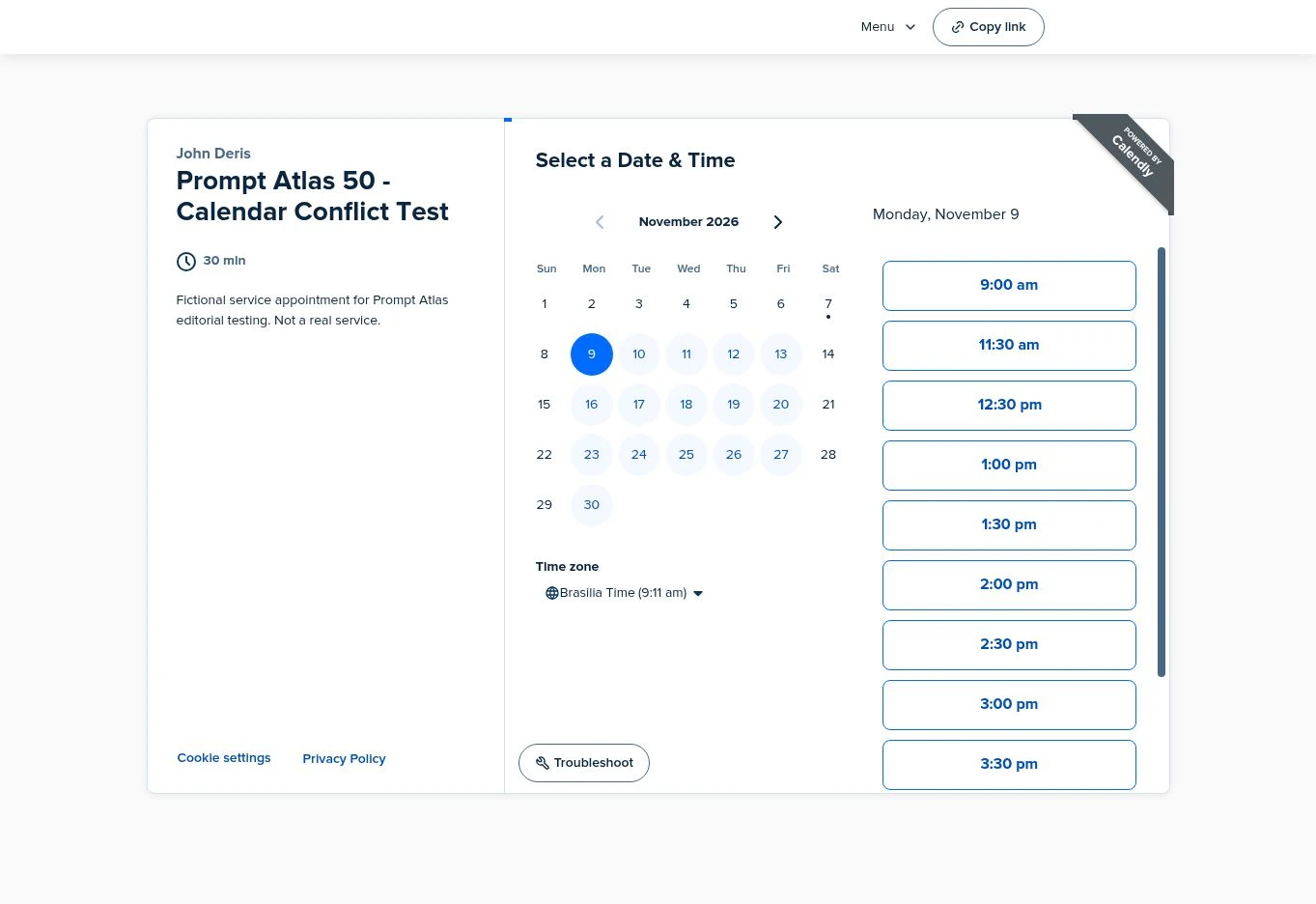
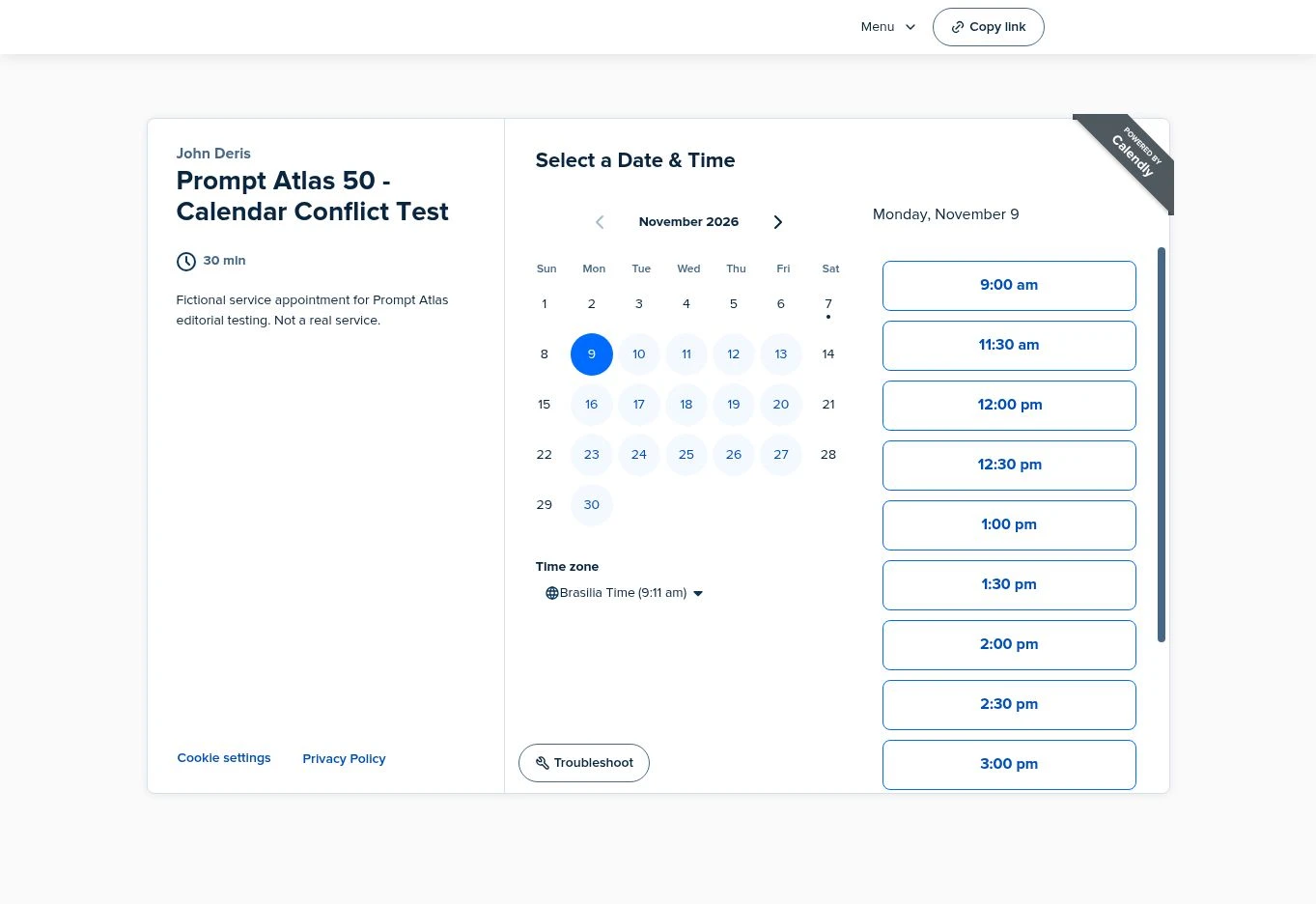
The cover is a conceptual illustration. The two screenshots show actual November 7 retest observations.
How I Tested
Calendly’s Calendar Conflicts
Test dates: Original test: November 6, 2026. Follow-up checks and screenshots: November 7, 2026.
I used a fictional appointment dated November 9. The account’s billing screen identified a Teams Plus trial, ending November 21, 2026.
How the actions were executed: An AI agent used connected tools to create, change, move, and delete the fictional Google Calendar event. I also queried Calendly’s bookable-time API and inspected the real booking page in an English-language browser.
Evidence sources:
- November 6 — API and booking page: The initial Busy and Free states, the moved event, and the deletion result.
- November 6 — API only: The additional Busy/Free status alternations.
- November 7 — follow-up and captures: The follow-up included booking-page checks. A further Busy/Free round produced the two screenshots below.
My setup was:
| Setting | Test configuration |
|---|---|
| Calendly event type | One-on-one, 30 minutes |
| Available hours | Monday–Friday, 9 a.m.–5 p.m. |
| Calendar checked for conflicts | Primary Google Calendar |
| Calendar selected to receive bookings | The same primary calendar |
| External test event | One fictional 30-minute appointment |
| Account and booking-page time zone | America/Sao_Paulo |
| Initial test time | November 9, noon–12:30 p.m. |
| Moved test time | November 9, 1–1:30 p.m. |
Before changing anything, I checked that both target slots were
available. My expected result was straightforward: Busy should remove
the overlapping slot, Free should restore it, moving the Busy event
should shift the block, and deleting it should remove that block.
The appointment was synthetic. I added no external guests, held no
call, and sent no customer messages. After the test, I deleted the
external event and turned off the Calendly test event type. See How We Test
for the site’s testing approach.
Results: Busy, Free, Moved,
and Deleted
Reading the table: These are eight observed states from the original November 6 sequence, including the baseline—not eight independent tests. The sequence included two Busy-to-Free rounds, one movement, and one deletion. The November 7 follow-up reproduced the same availability pattern; the screenshots below are labeled with that later date.
| Event state | Noon slot | 1 p.m. slot |
|---|---|---|
| Before the external event existed | Offered | Offered |
| Busy at noon | Not offered | Offered |
| Changed to Free | Offered | Offered |
| Changed back to Busy | Not offered | Offered |
| Changed to Free again | Offered | Offered |
| Busy restored before moving | Not offered | Offered |
| Busy event moved to 1 p.m. | Offered | Not offered |
| External event deleted | Offered | Offered |
Busy removed the overlapping
time
I created a fictional external event from noon to 12:30 p.m. with
Busy requested as its status. Calendly stopped offering noon, while the
adjacent 11:30 a.m. and 12:30 p.m. starts remained available.
The result appeared in both the bookable-time API and the public
booking page. This gave me evidence that the selected Google calendar
was influencing this event type’s availability.
Free restored the same time
I changed the same external event to Free. Its date, duration, and
title stayed the same. Calendly offered noon again.
I then switched it back to Busy and back to Free. The API showed the
same pattern: noon disappeared under Busy and returned under Free.
For a business using calendar entries as reminders, this is a useful
distinction. An optional reminder may be appropriate as Free. A client
appointment that should prevent another appointment needs a blocking
status and a calendar Calendly actually checks.
Moving the event moved the
block
With the external event set to Busy, I moved it from noon to 1 p.m.
Calendly reopened noon and stopped offering 1 p.m. I confirmed both
changes through the API and the booking page.
This was an external Google Calendar event. It was not a customer
rescheduling a Calendly booking, so the result does not establish how
booking confirmations or rescheduling emails behave.
Deleting the event
reopened the time
After I deleted the fictional Google Calendar event, Calendly offered
both noon and 1 p.m. again. The booking page matched the API.
I did not time synchronization. These checks show the state at my
subsequent observations, not a measured guarantee of instant
updates.
A Calendly Double-Booking
Checklist
If Calendly offers a time you expected to be blocked, start with the
configuration that can explain that specific slot.
1. Check
which calendar contains the conflicting event
Identify the calendar attached to the event itself. Then check that
this calendar is selected for conflict checking in Calendly.
In my setup, Calendly displayed separate selections for calendars
checked for conflicts and the calendar receiving new bookings.
Calendly’s calendar
connection documentation also describes these as separate choices.
Confirm both settings rather than relying on the fact that a Google
account is connected.
2. Inspect the event’s
Busy or Free setting
Open the conflicting event in Google Calendar and inspect its
availability status. To block scheduling, select Busy and save.
That is the procedure described in Calendly’s Busy/Free
guidance. My own result matched it for the external event I tested:
Free reopened the slot; Busy removed it.
3. Review any event-type
exceptions
Calendly also documents Free/busy
rules that can allow booking over matching calendar events. If Busy
does not produce the expected block, review the event type’s
exceptions.
Documentation only: I did not test those exception
rules, title matching, or booking over an existing Calendly meeting.
4. Recheck the same
date, time, and time zone
After saving a change, reload the booking page and compare the exact
overlapping interval. Use the displayed time zone, especially when the
host and client are in different regions.
I used one fixed date and two known slots so I could tell whether the
block moved. I left other calendar commitments unchanged.
If the slot still looks wrong, keep the event status, selected
calendar, event-type settings, and observed booking-page time together
when asking support to investigate. Those details make the problem more
specific than “my calendars are connected.”
Test Limits
This test supports a narrow conclusion about offered
availability for one external Google Calendar event.
I did not submit a booking, attempt two simultaneous reservations,
test a previously selected slot in a stale browser page, or check
behavior under concurrent requests. No double-booking incident was
reproduced.
I also did not test buffers, all-day events, recurring events,
unselected calendars, Outlook, Exchange, multiple hosts, or events
originally created through Calendly. The permanent Free plan was not
tested. The Teams Plus trial results should not be presented as a
Free-plan reliability test.
I measured neither synchronization delay nor setup time. The repeated
status observations do not establish a long-term reliability rate.
Frequently Asked Questions
Why
can Calendly offer a time when Google Calendar already has an
event?
With the tested configuration, the external event’s Free status allowed that time to
remain bookable. Calendar selection and event-type exceptions are
additional settings to inspect, according to Calendly’s
documentation.
Does changing an event
to Free delete it?
The status change preserved the fictional event while reopening
the overlapping Calendly slot. Deletion was a separate step later in the
procedure.
Did
this test prove Calendly prevents every double booking?
No. I checked which times Calendly offered after controlled calendar
changes. I did not test competing booking submissions or every
configuration.
Were these results from
Calendly Free?
No. The account showed a Teams Plus trial. Calendly’s documentation
lists calendar connection and Busy/Free guidance as available across
plans, but that is a documented feature claim, not a permanent Free-plan
test I performed.
My Recommendation
For a solo service business, include calendar selection and
Busy/Free status in your scheduling setup check. In this test,
changing the external event’s status was enough to change whether the
slot appeared available.
Before sharing your own booking link, repeat the same small check
with a fictional event in the calendar you intend to use. Confirm that
Busy removes the slot, Free restores it, and the displayed time zone
matches your comparison. Use the results to verify your configuration
before relying on it for client appointments.






Leave a Reply