

The Wix AI heading tags correction worked in this test: “Portfolio” changed from H1 to H2, while “Organic Growth for Small Businesses” remained H1. We confirmed both tags in the Preview HTML of the Maya Carter Digital demo.
Aria is Wix’s AI assistant. We used it to request one specific structural change without rewriting the page. This guide includes the original prompt and the checks you can use to confirm the result on your own page.
In our earlier Wix AI website builder review, Aria reported a similar correction, but Portfolio remained H1. This follow-up documents a different observed result; the reason for the difference is unknown.
What needed changing on our demo page
The Home page had a main heading, “Organic Growth for Small Businesses.” Farther down, a Demo Case Studies section contained a large “Portfolio” title.
Before the request, both the hero and Portfolio were exposed as H1 headings. The surrounding section titles were H2.
| Text on the page | Before | After, verified in Preview |
|---|---|---|
| Organic Growth for Small Businesses | H1 | H1 |
| Demo Case Studies | H2 | H2 |
| Portfolio | H1 | H2 |
| Client Success Stories | H2 | H2 |
| Latest Tips | H2 | H2 |
The immediate aim was to remove the extra top-level heading without rewriting the page. This was a narrow repair, not a complete accessibility audit.
An H2 is not automatically the right choice for every large title. If a title introduces a subsection within another H2 section, H3 may be more appropriate. Decide what the text represents before asking the editor to change its tag.
Ask for the HTML tag, not a smaller title
Open the relevant page in Wix Harmony and use Aria to describe one specific change. Identify the visible text, its location, the desired tag, and the heading that must remain unchanged.
Here is the original prompt we sent, without edits:
On the Home page, change only the HTML heading tag of the text "Portfolio" inside the Demo Case Studies section from H1 to H2. Keep the hero "Organic Growth for Small Businesses" as H1. Preserve all text, visual styling, font size, spacing, layout, and other elements. Do not publish the site.
The phrase “HTML heading tag” matters because the task concerns structure. Asking for a smaller title describes appearance and leaves the tag ambiguous.
For another site, replace the page name, target text, section name, and hero text with the exact wording in your own project. Keep the request limited to the change you can check.
Aria reported that it changed Portfolio to H2, left the hero untouched, and did not publish. We did not treat that response as proof.
Check Wix AI heading tags in Preview
After the response finished, we opened Preview. The editor’s accessibility representation showed Portfolio as a level-two heading; inspecting the Preview’s rendered heading elements also returned H2 for Portfolio and H1 for the hero.
The tags and text below summarize the rendered Preview elements; this is not a copy of their complete markup:
<h1>Organic Growth for Small Businesses</h1>
<h2>Demo Case Studies</h2>
<h2>Portfolio</h2>
<h2>Client Success Stories</h2>
<h2>Latest Tips</h2>
To check your own page in a desktop browser:
- Open Preview and locate the title you asked to change.
- Right-click that title and choose Inspect.
- In the browser’s Elements panel, find the element containing that exact text. The selected node may be a child span; inspect its surrounding heading element.
- Read the tag name. Confirm H2 if that was your request.
- Inspect the main hero heading and confirm its intended tag too.
If the page is inside a preview frame, make sure you inspect the text within that frame rather than the surrounding editor interface. You do not need the Network panel or a form submission to check a heading tag.
Also look at the visible page. In our editor view, Portfolio remained a large title after the tag changed.
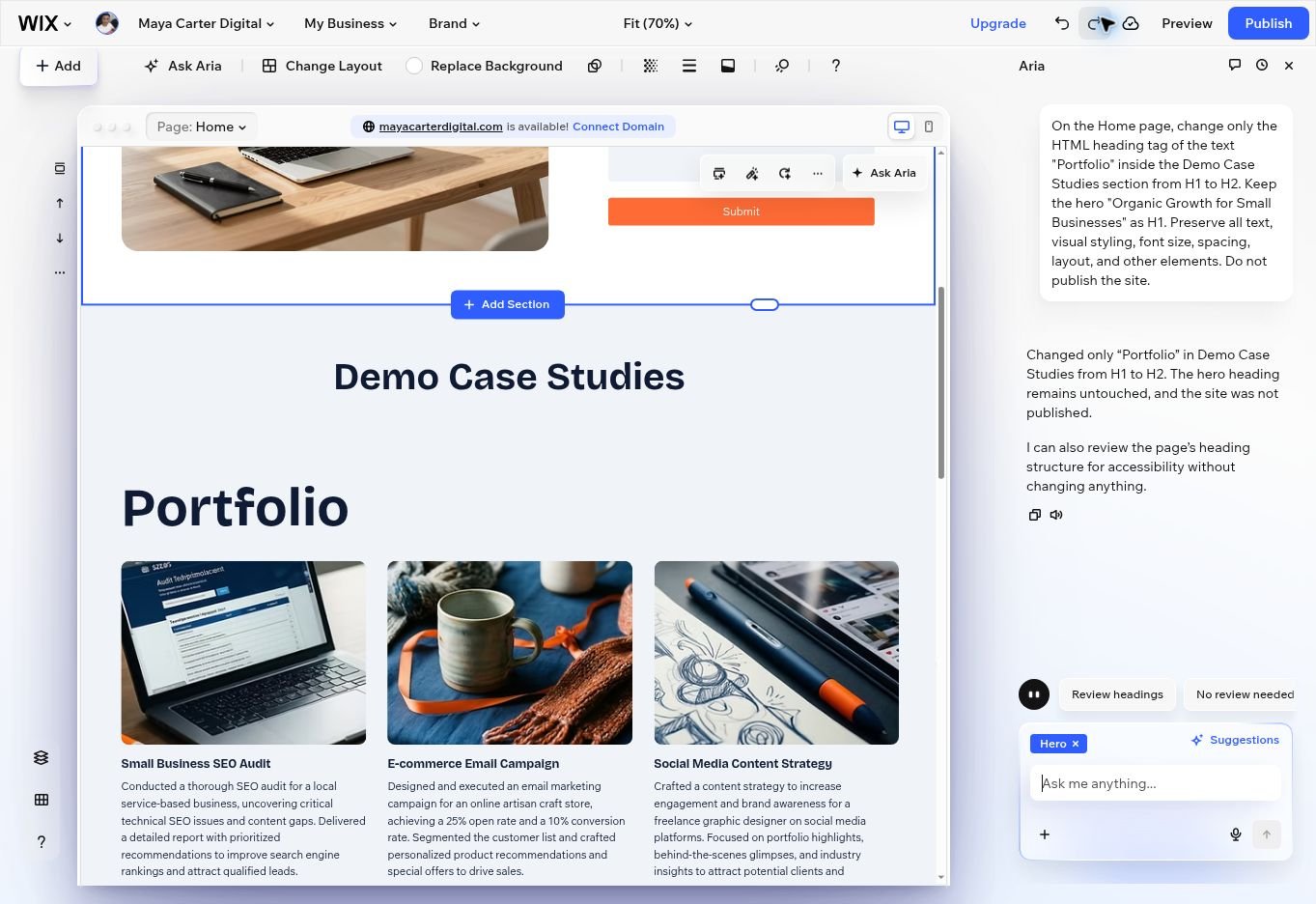
The screenshot records the editor view and Aria response. The H2 result was established separately by inspecting the rendered Preview HTML.
If the tag did not change
Inspect the element before making another request. If it remains H1, record the tag and Aria’s response together. That gives support a concrete mismatch to investigate. Keep the next request focused on the heading rather than expanding it into a page redesign.
Manual heading tags for ordinary text
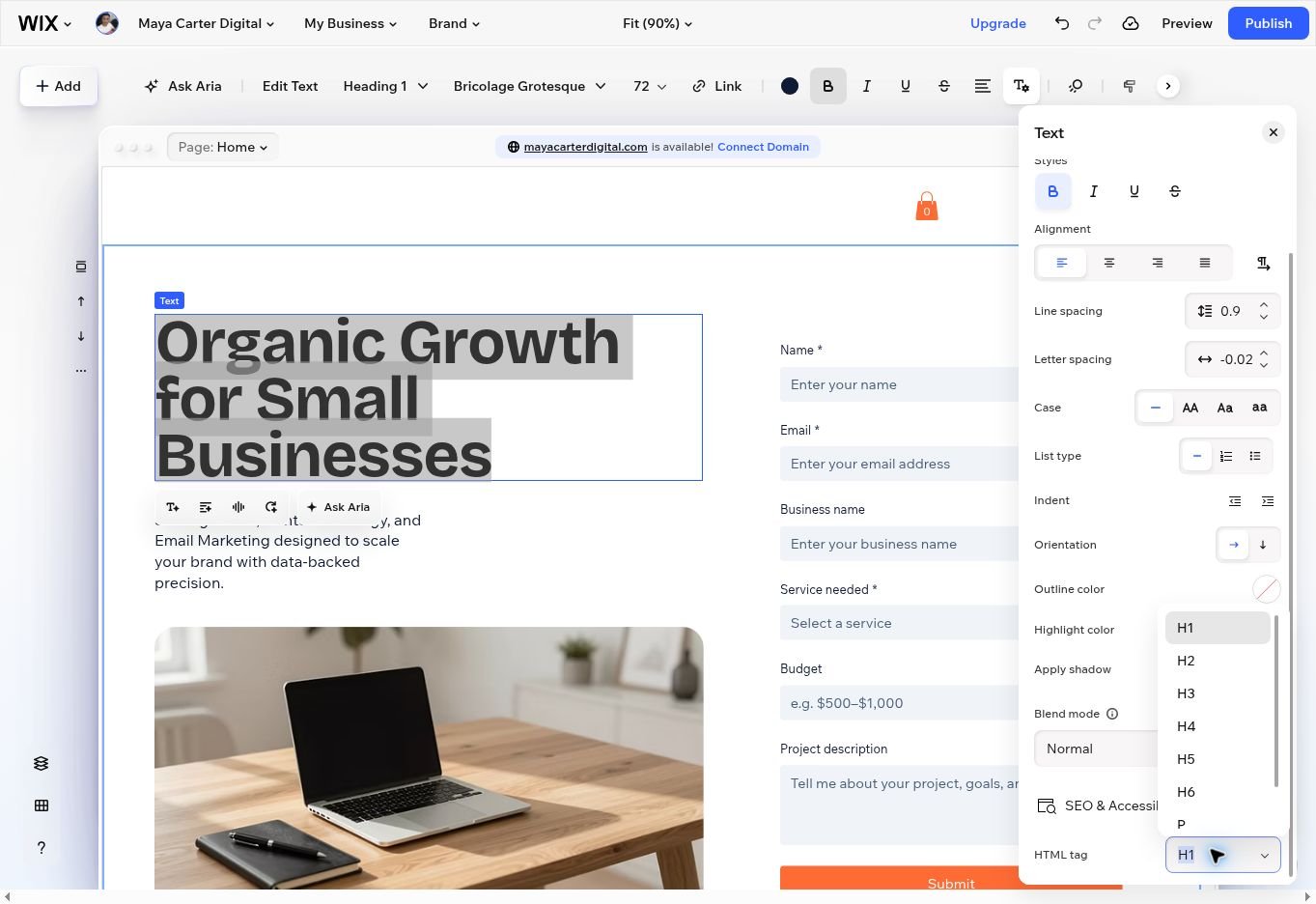
In the same Harmony editor, we found a manual HTML-tag control for an ordinary text element. We opened it on the hero heading to inspect the available choices, leaving its H1 tag unchanged.
- Double-click the ordinary text element to open its text controls.
- Open All text options in the text toolbar.
- Find SEO & Accessibility, then open HTML tag.
- The menu offers H1 through H6, P, and Blockquote. For a section heading that should be H2, choose H2, then check the rendered element in Preview.
We confirmed the control and its options, but did not save a manual tag change in this follow-up. Keep your main page heading at H1 when correcting a section heading.
Why Portfolio is different
Wix identified Portfolio as a Collection Title and offered Edit Title. That control opened a portfolio setup panel in this project; it did not expose a heading-tag setting we could verify. We closed it without setting up or recreating the portfolio.
The ordinary-text path above therefore should not be assumed to work for an app title. Aria was the verified route for changing Portfolio in our test.
Keep the heading structure meaningful
Headings describe relationships in the content. W3C’s heading guidance recommends nesting headings according to their rank, with H1 representing the highest level and lower ranks marking subsections.
Source: W3C WAI — Headings.
For a simple business page, sketch the structure in words first: the page topic, the main sections, and any subsections. Then choose tags that express those relationships. The font size can be handled separately.
Before you move on
Request one structural change, inspect the affected element, and check the heading you intended to preserve. If you later publish your site, repeat the tag check on the live page before treating the correction as verified there.
Continue with the related Wix workflows
Our Wix AI website builder review covers the broader demo-building experience, including the earlier heading correction that did not stick.
For a separate task, the Wix AI quote form tutorial follows the form workflow. A heading check and a working form need different evidence.






Leave a Reply