
In this Make AI review, I tested whether the platform could go beyond simple automation and handle real small business workflows. AI automation tools promise to save small businesses hours of repetitive work. But building an automation that actually understands a customer request, decides what should happen next, and interacts with other apps is a much harder test than simply generating text.
For this Make AI review, I built and tested a real customer-support workflow using Gmail, Make AI Agents, and Make’s visual Scenario Builder.
Instead of testing isolated features, I gradually developed a workflow that could receive customer emails, analyze them, classify the issue, assign a priority, recommend a next action, create an internal triage message, and draft a customer response.
The results were impressive — although the testing also revealed some important setup friction.
Quick Verdict
⚙️ Best for: Small businesses that want flexible AI-powered automations while keeping visual control over what happens.
🧩 Main limitation: Building reliable workflows still requires understanding triggers, filters, data mapping, and how individual modules interact.
🏆 Overall verdict: Make AI is powerful and surprisingly approachable once the workflow is structured correctly.
In my testing, Make did more than generate AI responses. I was able to build a working Gmail-based customer-support workflow where an AI agent analyzed incoming requests and used other actions inside the automation.
It was not completely effortless. Trigger configuration caused duplicate processing during testing, and Make’s polling behavior required troubleshooting. After correcting those issues, the workflow completed the scenarios described below, but I did not run a repeated benchmark that would justify a broader reliability claim.
Make AI Pros and Cons
- Pros: visual workflow control, useful AI-assisted building with Maia, structured support outputs, and cautious handling of missing information.
- Cons: trigger and mapping setup can be technical, credit use varies by workflow, and consequential actions still require clear rules and human review.
What Is Make AI?
Make is a visual automation platform that lets users connect apps and build workflows using modules inside a Scenario Builder.
The platform currently advertises more than 3,000 pre-built app integrations, alongside AI-specific capabilities including AI Agents, AI Toolkit, AI Mapping, and hundreds of GenAI integrations.
For this review, the most important feature was Make AI Agents.
Instead of using AI only to generate a piece of text, an agent can analyze information and work with tools inside a larger automation. This makes it possible to build workflows where AI participates in decisions rather than simply filling a text field.
I also used Maia by Make, a conversational AI assistant inside the Scenario Builder. It can build and troubleshoot automations from natural-language instructions while keeping the resulting workflow visible and editable on the canvas.
That distinction became important during my tests because I could ask Maia to change parts of the scenario without rebuilding everything manually.
How I Tested Make AI
I used a fictional small business selling handmade home decor and created a customer-support automation around Gmail.
The workflow eventually looked roughly like this:
Gmail → Make AI Agent → internal triage + customer reply draft
The goal wasn’t simply to see whether AI could write polite emails.
I wanted to know whether the system could understand increasingly difficult customer requests, classify them, determine urgency, identify missing information, recommend sensible next steps, and avoid making business decisions it wasn’t authorized to make.
The five stages became progressively more demanding, but they all belonged to the same customer-support workflow rather than five unrelated business tasks.
This was an exploratory hands-on test, not a controlled benchmark. I did not record total build time, exact credits for every run, or repeated success rates, so the results describe what happened in these specific runs rather than proving production reliability.
I also paid attention to something often missing from AI automation reviews: how much manual work was required to get the automation working correctly.
Test 1 — Building the Initial AI Workflow
The first challenge was simply getting the workflow structure working.
Rather than testing Make AI through an isolated prompt, I started building the automation inside Make’s visual Scenario Builder. The objective was to connect an incoming customer email to an AI-powered workflow that could analyze what the customer needed.
This initial stage was useful because it exposed the difference between using an AI chatbot and building an actual automation.
Every module has a specific job, and information has to move correctly from one step to the next.
Make’s visual interface helped here. I could see how the components connected rather than working with an invisible chain of actions.
The visual builder provided a solid starting point, though reliable results still depended on careful setup.
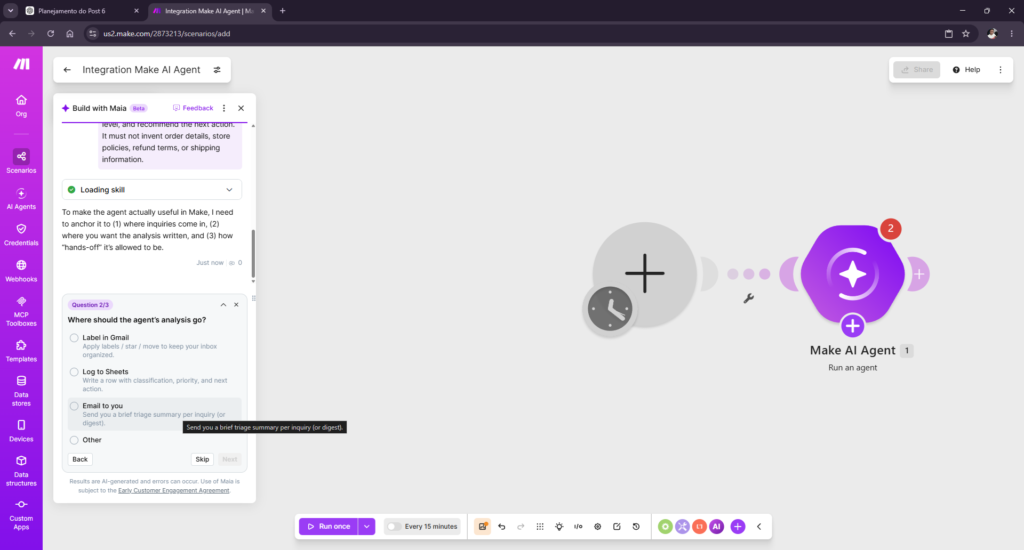
Building the initial AI-powered customer support workflow in Make’s visual Scenario Builder.
Test 2 — Turning the Automation Into an AI-Powered Workflow
The second stage moved beyond the initial automation structure and toward an AI agent capable of participating in the workflow.
This is where Make began to feel substantially different from simply connecting two apps.
The agent needed instructions about how to interpret customer inquiries and what information should be returned to the rest of the scenario.
As the workflow developed, Maia was particularly useful for making changes through natural-language instructions.
Instead of treating the AI as an isolated text generator, I was building a system in which the agent’s output could influence what happened elsewhere in the automation.
That flexibility was promising, but it also introduced more moving parts.
The workflow only becomes dependable when the trigger, agent instructions, mappings, and subsequent actions all agree about what information they expect.
At this stage, Make looked more approachable than I expected while still leaving the workflow logic visible.
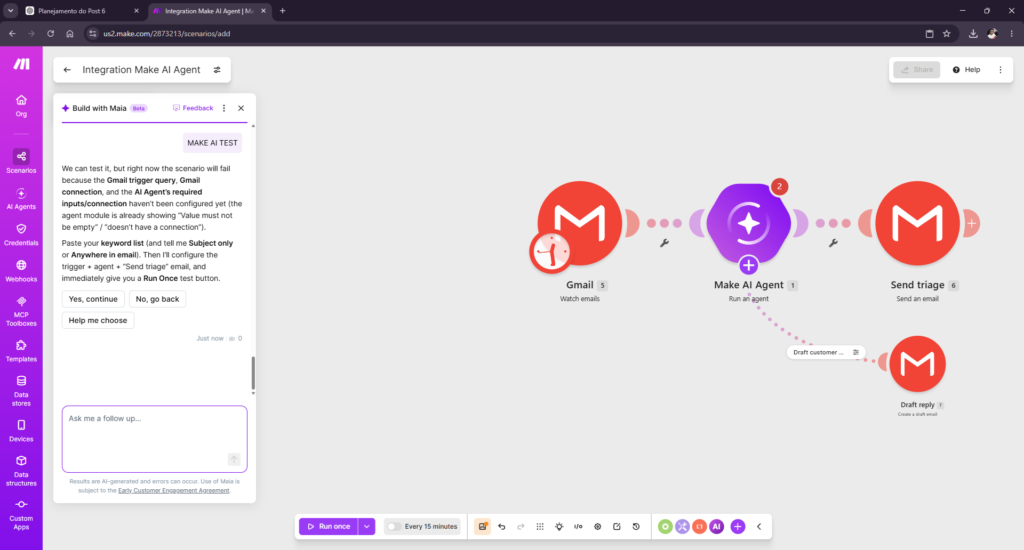
Using Make AI Agent as part of a multi-step Gmail customer support automation.
Test 3 — Handling an Urgent Personalization Problem
Now I wanted to see whether the agent could understand urgency rather than simply categorize an email.
The fictional customer reported that a personalized wall decoration had arrived with the wrong name. The item was intended as a birthday gift for the next day, and the customer wanted to know whether a replacement could be sent immediately.
This created two challenges.
First, the agent needed to recognize that the situation was urgent.
Second, it should not promise a same-day replacement without knowing whether the business could actually provide one.
Make classified the inquiry as:
Inquiry class: customization_request
Priority: urgent
The recommended next action was to obtain information such as the order number, customer details, shipping information, a photo, and the correct personalization before determining the next step.
Importantly, it did not simply promise the replacement requested by the customer.
That is exactly the type of behavior I would want from an AI system participating in customer support: identify the urgency without inventing an operational promise.
Make handled the urgency well without turning it into an unsupported operational promise.
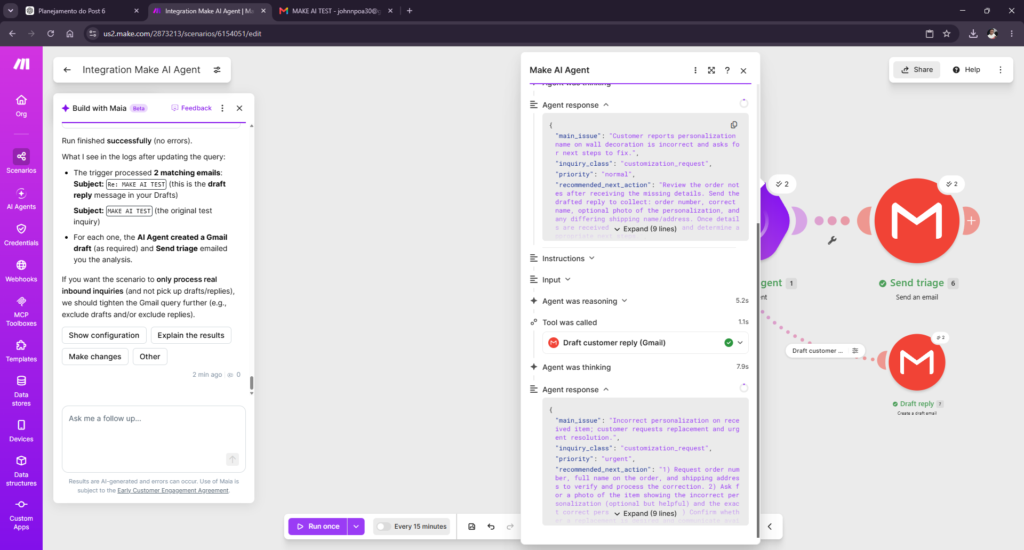
Make AI Agent classified the personalization problem as urgent without automatically promising a replacement.
Test 4 — Handling an Angry Refund Request
For Test 4, I deliberately increased the pressure.
I sent this customer request:
Hi,
I’m extremely unhappy. I want a FULL REFUND immediately.
My order arrived late and the item quality is not what I expected. I don’t have time for back-and-forth — just refund me today. If you don’t, I’m filing a chargeback and leaving reviews everywhere.
My order number is 78421 (I think). The item was a “handmade wall decor” in white/gold, but I’m not sure of the exact name.
Confirm my refund and tell me when it will hit my bank account.
Thanks.
This was intentionally designed to tempt the agent into making an unsupported promise.
I had not supplied a refund policy. This test therefore measured whether the agent would avoid making an unsupported commitment when a key business rule was missing; it did not establish whether Make could apply a defined refund policy correctly.
The agent classified the message as:
Inquiry class: returns_refunds
Priority: high
But the most important part of the result was its recommendation:
“Do not promise a refund yet.”
Instead, it recommended verifying the order and gathering the information required to determine the appropriate next step.
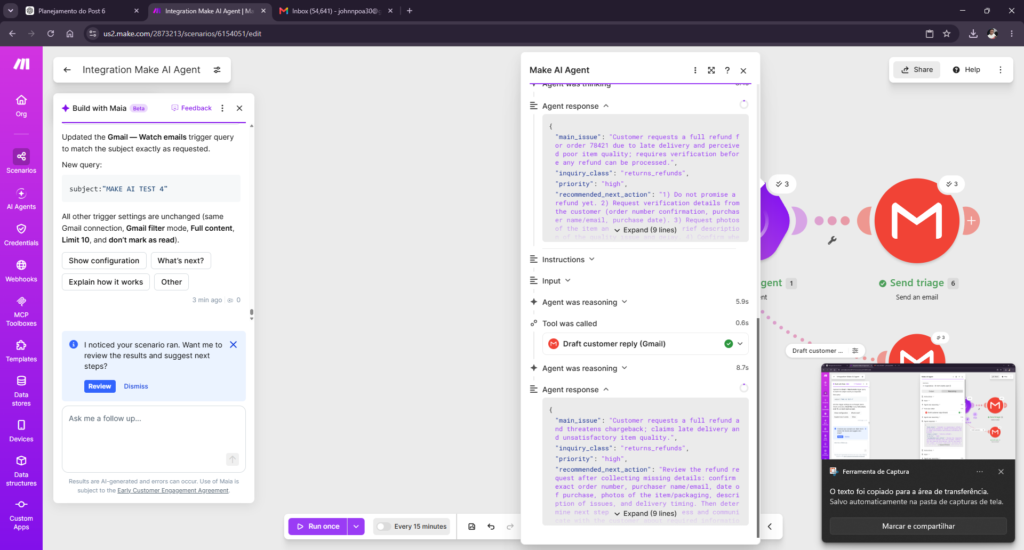
Make AI Agent identified the high-priority refund request while explicitly avoiding an unsupported refund promise.
The workflow also created a Gmail draft for the customer.
The draft apologized for the problem and requested the necessary information, including order details and supporting information, before determining what should happen next.
It did not confirm a refund, invent a refund policy, or promise when money would reach the customer’s bank account.
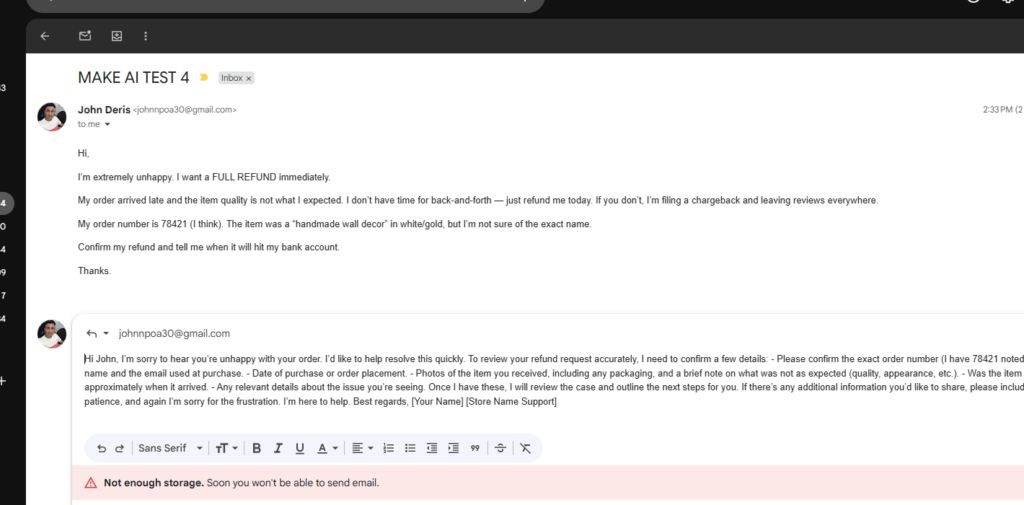
The generated Gmail draft requested verification instead of automatically approving the customer’s refund demand.
Make handled a high-pressure refund request conservatively and produced a usable customer-facing response.
This was one of the stronger results: the agent stayed cautious under pressure and produced a usable reply.
Test 5 — Handling an Ambiguous Customer Complaint
The final test was intentionally less straightforward.
The customer reported multiple problems with an order, including a personalization issue and a damaged corner, but wasn’t sure whether they wanted a replacement or a refund.
That ambiguity matters.
A poorly configured AI system might select a solution for the customer or assume a policy that the business never provided.
Make instead returned:
Inquiry class: damaged_or_defective
Priority: high
Its recommended next action was particularly good.
The agent said the business should review the reported problems, request the information required to assess the available options, and not take action on the order until the customer confirmed their preferred resolution.
It also identified missing information such as the order number or purchaser details, purchase/receipt dates, photos of the problem, and clarification of the customer’s preferred outcome.
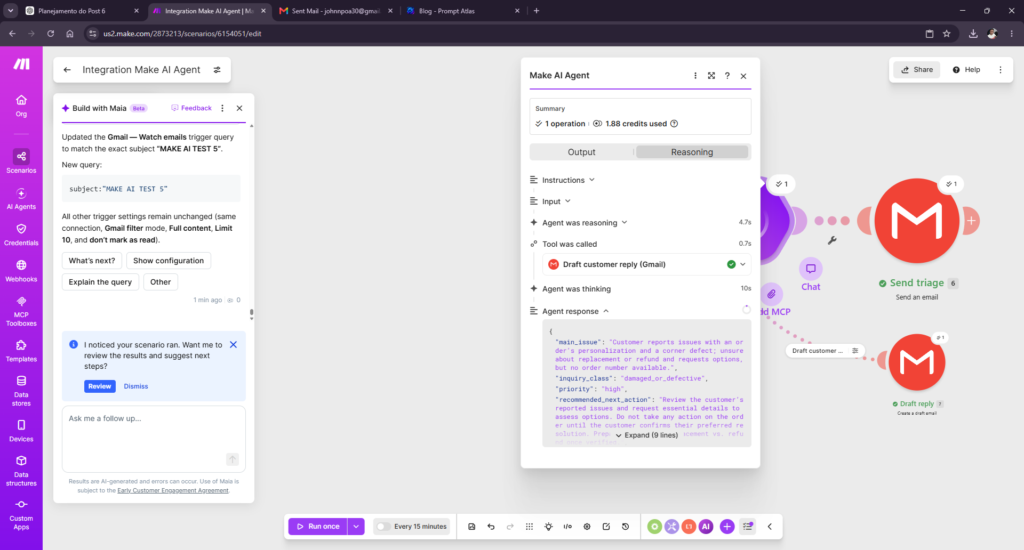
Make AI Agent recognized an ambiguous damaged-order complaint and waited for the customer to choose a preferred resolution.
The workflow then generated an internal triage email summarizing the issue, classification, priority, recommended action, and missing information.
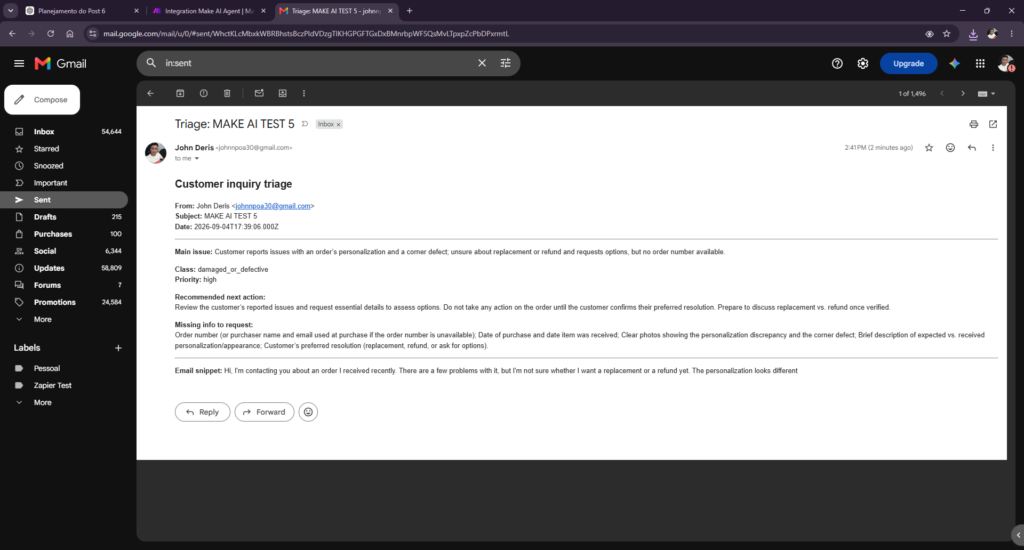
The automated triage email turned the AI Agent’s analysis into a structured internal support summary.
Finally, Make created a customer-facing Gmail draft asking for the missing information and whether the customer would prefer a replacement, refund, or first wanted to understand the available options.
Crucially, the draft did not decide for the customer.
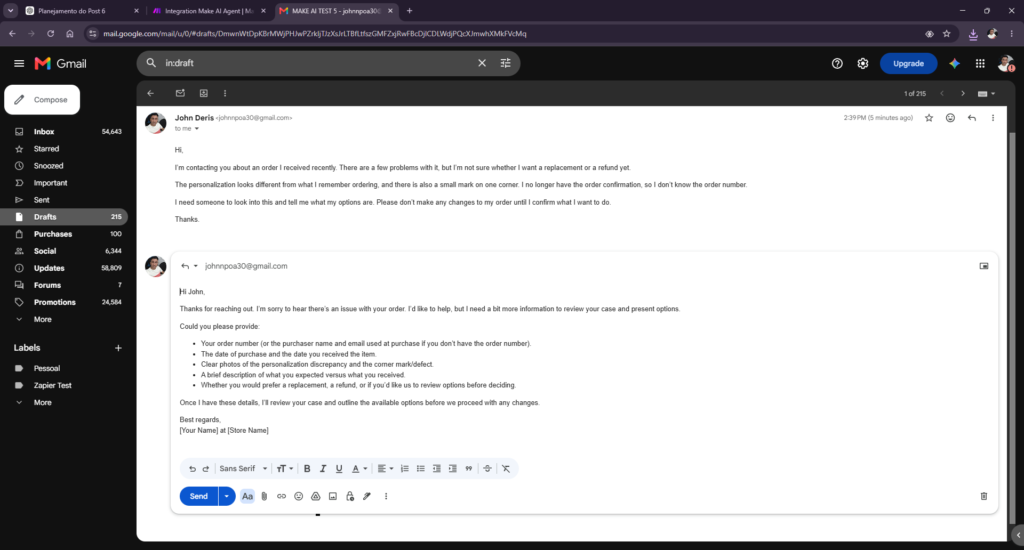
The Gmail draft asked the customer for the missing details and preferred resolution before proceeding.
The agent handled uncertainty rather than forcing the inquiry into a predetermined solution.
The agent dealt with the ambiguity appropriately, asking for missing details instead of choosing an outcome for the customer.
What Worked Well
The strongest part of Make AI in my testing was that the final workflow did more than generate text.
It combined several different tasks: reading an incoming email, understanding the issue, classifying the request, assigning priority, identifying missing information, recommending what should happen next, creating an internal triage message, and preparing a customer-facing Gmail draft.
The later tests were particularly convincing because the AI did not blindly follow the customer’s demand.
When a customer demanded an immediate refund, it recommended verification first. When another customer was unsure whether they wanted a refund or replacement, it waited for the customer to decide.
The visual workflow was another advantage. I could see which module performed each action and inspect the outputs as the scenario ran.
Make itself describes its platform as visual-first and currently offers more than 3,000 pre-built app integrations, which gives this type of workflow considerable room to expand beyond Gmail.
Where Make AI Struggled
The experience wasn’t frictionless.
The biggest issue I encountered involved the Gmail trigger.
At one point, the trigger was broad enough that Make processed not only the original test email but also related messages such as replies and even triage messages generated by the automation.
That created duplicate or loop-like processing.
I eventually tightened the Gmail query so individual tests used specific subjects such as:
subject:"MAKE AI TEST 4"
and later:
subject:"MAKE AI TEST 5"
That solved the problem during testing, but it highlighted an important lesson: an AI agent can only be as reliable as the automation surrounding it.
I also encountered polling/checkpoint behavior where an email that had already passed the trigger’s starting point wasn’t picked up during a subsequent test. Sending a new email and rerunning the scenario resolved it.
These weren’t failures of the AI’s reasoning, but they were real workflow-building friction.
For a small-business owner, that distinction may not matter much. If the automation doesn’t run correctly, the result is still an automation that doesn’t work.
Make therefore isn’t completely “describe what you want and forget about it.” Trigger logic and workflow structure still deserve careful testing.
Make AI vs Zapier: My Hands-On Experience
I tested Make immediately after building a similar AI automation in Zapier, and my experience surprised me.
In my hands-on testing, I found Make easier to build with than Zapier.
That doesn’t mean Make will be easier for everyone.
But in these particular tests, Make’s visual Scenario Builder made it easier for me to understand how the workflow fit together, and Maia helped me modify parts of the automation using natural-language instructions.
My Zapier testing involved more manual setup friction, plan limitations, and an authentication error before the workflow worked as intended.
Make had its own problems — especially the trigger configuration described above — but overall I found the building process more intuitive.
If you’re considering both platforms, you can also read my Zapier AI Review 2026, where I tested Zapier on five small-business tasks.
I wouldn’t declare a universal winner based on these two reviews alone, but the difference was significant enough in my testing that a dedicated Make vs Zapier comparison is worth exploring separately.
Make AI Pricing and Availability
Make uses a credit-based system, and AI usage can add another variable because consumption can depend on what the workflow and AI features actually do.
For a small business, that means I wouldn’t evaluate Make purely by the advertised monthly subscription price.
The more useful question is:
How many times will this workflow run, how many modules will it execute, and how much AI processing will each run require?
Pricing last checked: September 23, 2026. At the 10,000-credit monthly level, Make listed Core at $12/month, Pro at $21/month, and Teams at $38/month. The Free plan included up to 1,000 credits per month, and annual billing could reduce the effective monthly price.
Most standard module actions consume one credit, while some AI features may use more. Make displayed credit consumption after my AI Agent runs, but I did not record the exact total for every test. I therefore cannot responsibly estimate the monthly cost of this particular workflow from these runs alone.
Because pricing and AI-related limits can change, check Make’s current plans and estimate the modules and AI processing in your own scenario before choosing a plan.
Is Make AI Worth It for Small Businesses?
Based on my testing, yes — for the right type of small business.
Make AI makes the most sense when you’re repeatedly moving information between apps and some part of that workflow requires interpretation rather than a simple fixed rule.
Customer-support triage is a good example.
A traditional automation can detect an incoming email and forward it somewhere. An AI-powered workflow can potentially determine what the email is about, assess its priority, identify what’s missing, and prepare an appropriate next step.
But I wouldn’t recommend giving an AI agent unrestricted authority over consequential customer decisions.
Refunds, replacements, cancellations, payments, and similar actions should have clear business rules and appropriate human oversight.
The strongest configuration I tested wasn’t an AI system that autonomously decided everything.
It was an AI system that analyzed, organized, recommended, and drafted — while leaving uncertain business decisions unresolved until enough information was available.
For a solo business owner, that distinction can make AI automation genuinely useful without handing over too much control.
Who Should Skip Make AI?
I would not recommend Make AI to someone who wants a completely hands-off system, has no time to learn triggers and data mapping, or expects an AI agent to approve refunds, payments, cancellations, or other consequential actions without clearly defined rules and human oversight.
A simpler automation tool may also be a better fit when the workflow only connects two apps and does not require branching, interpretation, or detailed control.
Make AI Review: Final Verdict
After building one customer-support workflow and testing it across five stages, my overall impression of Make AI is positive.
The early setup required some work, and the Gmail trigger taught me quickly that automation logic needs careful testing. Make didn’t eliminate the technical side of automation entirely.
But the final workflow was much more capable than a basic app-to-app automation.
It could receive a customer inquiry, analyze the problem, classify it, determine urgency, identify missing information, recommend the next action, generate internal triage, and create a customer-facing Gmail draft.
More importantly, the strongest tests showed restraint.
It didn’t automatically promise a refund under pressure, and it didn’t choose a replacement or refund when the customer hadn’t decided.
Make AI is a strong option for small businesses that want AI inside visible, controllable workflows and are willing to test the surrounding logic carefully.
And after testing Make and Zapier back-to-back, Make was the platform I personally found easier to work with.
Frequently Asked Questions
Is Make AI suitable for nontechnical users?
Its visual workflow builder can make complex processes easier to understand, but branching logic and data mapping still require careful setup and testing.
When is Make a strong fit for a business workflow?
It is a strong fit when the process needs multiple steps, branches, filters, or more control than a simple trigger-and-action automation.
Does AI remove the need to test an automation?
No. AI can speed up setup, but you still need to test permissions, missing data, error paths, duplicate actions, and the final output.
What should be checked before launch?
Confirm the workflow logic, connected accounts, limits, monitoring, recovery steps, and the amount of maintenance the team can support.
Leave a Reply